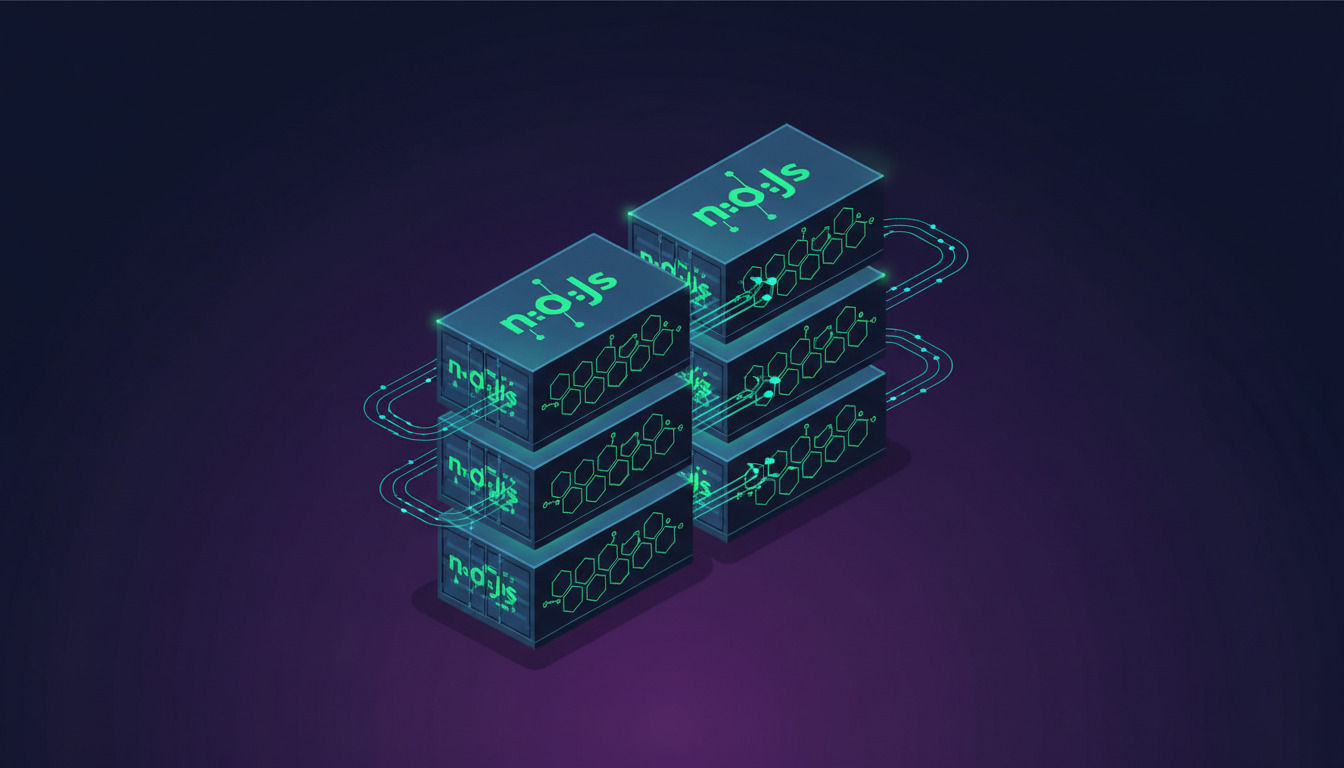
A Node.js Dockerfile is the kind of thing that always works on the first try and then gets you in trouble later — the minimal version that puts your app in a container is six lines, and it has at least four production problems baked in. This walkthrough starts with that minimal version, points out what's wrong with it, and ends with a multi-stage Dockerfile that's actually ready to ship.
If you haven't picked a base image distro yet, the Linux distros for deployment post covers the host-side picture; this one focuses on the container itself.
The naive starting point
Here's what a first-try Node.js Dockerfile usually looks like:
FROM node:22
WORKDIR /app
COPY . .
RUN npm install
EXPOSE 3000
CMD ["npm", "start"]
It works. You can docker build -t myapp . and docker run -p 3000:3000 myapp and the app comes up. But it has problems that show up after the first few deploys:
- Image size:
node:22is ~1.1 GB. Every push to your registry, every pull on every target server, every CI cache invalidation moves a gigabyte. COPY . .beforenpm installinvalidates the dependency layer on every source-code change, sonpm installre-runs on every build. CI builds go from 20 seconds to 3 minutes.- Runs as root: anything the application does — including a vulnerability that lets an attacker write files — runs with full container privileges.
npm startas PID 1: npm doesn't forward SIGTERM properly, sodocker stopwaits ten seconds and then SIGKILLs your process mid-request.- No
.dockerignore: yournode_modules/,.git,.env, and CI artefacts all get baked into the image.
Each of those is a one-line fix; together they're the difference between a hobby Dockerfile and a production one.
A production-ready Dockerfile
Here's what the same app looks like once those issues are addressed. The walkthrough below explains each block.
# syntax=docker/dockerfile:1.7

# --- build stage ---
FROM node:22-alpine AS build
WORKDIR /app

# Cache the dep layer separately — only invalidates when package.json/lock changes
COPY package.json package-lock.json ./
RUN npm ci --only=production && \
    cp -R node_modules /tmp/prod_node_modules && \
    npm ci

# Now copy source and build
COPY . .
RUN npm run build      # tsc, webpack, vite, whatever your build is

# --- production stage ---
FROM node:22-alpine
WORKDIR /app
ENV NODE_ENV=production

# Drop privileges — run as the non-root `node` user the image ships with
USER node

# Copy production deps from the build stage (no devDeps)
COPY --from=build --chown=node:node /tmp/prod_node_modules ./node_modules
COPY --from=build --chown=node:node /app/dist ./dist
COPY --from=build --chown=node:node /app/package.json ./

# Health-check endpoint — Docker uses this to know whether the container is alive
HEALTHCHECK --interval=30s --timeout=5s --start-period=10s --retries=3 \
  CMD wget --quiet --tries=1 --spider http://localhost:3000/health || exit 1

EXPOSE 3000

# tini (or `--init` on `docker run`) handles SIGTERM properly so the app shuts down cleanly
ENTRYPOINT ["/sbin/tini", "--"]
CMD ["node", "dist/server.js"]
And a matching .dockerignore in the project root:
node_modules
npm-debug.log
.git
.gitignore
.env
.env.*
README.md
.dockerignore
Dockerfile
.github/
.vscode/
coverage/
.nyc_output/
*.log
.DS_Store
That's the whole production Dockerfile. The walkthrough below explains the reasoning behind each section.
Walkthrough: what each block does
node:22-alpine vs node:22
The full node:22 image is ~1.1 GB; node:22-alpine is ~150 MB. That's a 7× reduction in pull time, registry storage, and disk usage on every target server.
The catch is that Alpine uses musl libc instead of glibc, which breaks some prebuilt native modules. The most common offenders: sharp (image processing), bcrypt, node-canvas, puppeteer-chromium. If you're using one of those, either:
- Add the build tools needed to compile from source:
RUN apk add --no-cache python3 make g++ && npm ci && apk del python3 make g++ - Or use
node:22-slim(Debian-slim with glibc, ~250 MB) as a middle ground.
For a typical web/API app without native modules, Alpine is the right default. If you're not sure, start with Alpine and switch only when you hit a real compatibility issue.
npm ci not npm install
npm install reads package.json and writes a fresh package-lock.json. npm ci reads package-lock.json directly and refuses to run if it's out of sync with package.json — which is the behaviour you want in CI. Every build produces an identical dependency tree, and a stale lockfile fails the build instead of silently picking different versions.
Make sure package-lock.json is committed to git. CI without a lockfile is not reproducible.
The --only=production flag in the first npm ci skips devDependencies, which is what gets copied into the production stage. The second npm ci (full install with dev deps) only exists for the build step (npm run build) and never makes it into the final image.
Layer caching: copy package*.json before source
Docker builds layer-by-layer, and each layer is cached unless its inputs change. By copying just package.json and package-lock.json first, the expensive npm ci step only re-runs when one of those files changes — not on every source code edit.
On a properly cached build, editing a .ts file and rebuilding takes 5–10 seconds (just the COPY . . + npm run build layers). Without this split, every build re-runs npm ci and adds 30–60 seconds.
The pattern: cheap layers (COPY package*.json, RUN npm ci) go before expensive layers (COPY . .). That way, source changes don't invalidate the dependency cache.
Multi-stage build
Multi-stage builds let you have one image for building (with all the dev tools, devDependencies, source maps, TypeScript compiler) and a separate image for running (with only the compiled output and production dependencies).
The --from=build flag on COPY pulls files from the build stage. Anything not explicitly copied — source .ts files, the TypeScript compiler, dev dependencies, the build cache — never makes it into the production image.
The final image weighs in around 200 MB for a typical Express/Fastify app, vs ~1.5 GB for a single-stage FROM node:22 + COPY . . build. That's a meaningful difference when the image is being pulled to 10 servers on every deploy.
USER node
The official Node.js images ship with a non-root node user (UID 1000) preconfigured. Switching to it with USER node means everything from that point on — including the running application — executes without root privileges.
A vulnerability in the app can still do damage, but it can't (for example) modify /etc/passwd, install new packages, or escape to the host via a kernel exploit that requires root. The principle is defense in depth: assume the app will be compromised at some point, and limit what happens next.
--chown=node:node on the COPY lines makes sure the copied files are owned by the node user. Without it, they'd be owned by root and the node user couldn't modify them (which sometimes matters — log directories, writable config).
tini for proper PID 1 signal handling
Node.js as PID 1 doesn't handle Unix signals well. When docker stop sends SIGTERM, Node's default handlers don't fire — so your process.on('SIGTERM', ...) graceful shutdown code never runs, in-flight requests get cut off mid-response, and Docker kills the container with SIGKILL after the 10-second timeout.
tini is a minimal init process designed for this exact problem. It runs as PID 1, forwards signals to your Node.js process, and reaps zombie children correctly. The official node:*-alpine images include it at /sbin/tini.
Alternative: run the container with docker run --init, which uses Docker's bundled init process. Same effect, but it requires the operator to remember the flag — bundling tini in the Dockerfile makes it the container's own responsibility.
HEALTHCHECK
Docker uses the healthcheck to mark a container as healthy or unhealthy in docker ps. More importantly, orchestrators (Docker Swarm, Kubernetes via similar livenessProbe/readinessProbe) use these signals to route traffic and decide when to restart a container.
Implement the /health endpoint in your Node.js app to actually verify the app is functioning — not just that the process is alive. A common pattern:
app.get('/health', async (_req, res) => {
  try {
    await db.query('SELECT 1');     // confirm DB connectivity
    res.json({ status: 'ok' });
  } catch (err) {
    res.status(503).json({ status: 'unhealthy', error: err.message });
  }
});
--start-period=10s gives the app 10 seconds to come up before failed healthchecks count against it. Adjust based on how slow your app is to boot.
.dockerignore
The .dockerignore file is to docker build what .gitignore is to git — files matched by patterns in it are excluded from the build context. Without one, COPY . . includes everything: node_modules/ (overwritten by npm ci anyway, but slows the build), .git/ (large and pointless), .env files (a secret leak waiting to happen), CI artefacts, screenshots, IDE settings.
The cost of a missing .dockerignore is real: a multi-megabyte .git directory can balloon the build context, slow docker build, and (if you skip the multi-stage trick) end up in the final image.
Building and running it
# Build
docker build -t myapp:1.2.3 .

# Confirm size — should be a few hundred MB, not 1+ GB
docker images myapp

# Run
docker run -d --name myapp -p 3000:3000 \
  -e NODE_ENV=production \
  -e DATABASE_URL=postgres://... \
  myapp:1.2.3

# Tail logs
docker logs -f myapp

# Inspect health
docker inspect --format='{{json .State.Health}}' myapp | jq
For the full set of daily-use Docker commands, see the Docker cheatsheet.
Deploying from a CI/CD pipeline
The production deploy pattern: CI builds and tags the image, pushes to a registry, then the target servers pull and roll over. With DeployHQ, that flow looks like:
- Push to a Git branch.
- DeployHQ webhook fires.
- Build pipeline runs
docker build -t myapp:%revision% .anddocker push registry.example.com/myapp:%revision%. - SSH deploy commands on each target server:
docker pull registry.example.com/myapp:%revision% && docker stop myapp || true && docker rm myapp || true && docker run -d --name myapp ... myapp:%revision%. - The pipeline waits for the health check to pass before reporting the deploy successful.
%revision% is DeployHQ's variable for the commit SHA, so every image is tagged with its source commit — invaluable when you need to map a production incident back to a specific code change.
For end-to-end Docker-deploy walkthroughs on specific stacks, see the Related guides at the end of this post for two worked examples (Metabase on Ubuntu, n8n on Alibaba Cloud).
Compared to a GitHub Actions / Jenkins / Buddy setup that builds the image inside the CI runner, the DeployHQ pattern keeps the build in a clean container per deploy and ships the final image directly to your target servers — no shared CI runner state, no leftover Docker daemon caches between unrelated projects.
Common pitfalls
A few traps that catch people the first time they ship a Node.js Dockerfile:
Forgetting to bump the NODE_ENV — NODE_ENV=development (the default if you don't set it) skips some performance optimisations and includes verbose error stacks in responses. Always ENV NODE_ENV=production in the runtime stage.
Hard-coding secrets in the image — never ENV DATABASE_URL=postgres://prod:secret@... in the Dockerfile. The Docker history of every layer is readable by anyone with the image. Pass secrets via runtime environment variables (docker run -e DATABASE_URL=...) or a secrets manager.
Not pinning the base image — FROM node:22-alpine follows the latest 22.x release; in production you usually want FROM node:22.10.0-alpine so a Node.js patch release isn't introduced silently into a deploy. Update the pin deliberately when you want the new version.
Building on the wrong CPU architecture — building on Apple Silicon (arm64) and deploying to x86_64 servers without --platform=linux/amd64 produces an image the target can't execute. Either build with docker buildx build --platform=linux/amd64,linux/arm64 ... for multi-arch images, or pin the build host's architecture.
Skipping the lockfile — without package-lock.json, every build re-resolves dependencies. New patch versions of transitive deps can appear between deploys, which is exactly the kind of non-reproducibility that causes works on staging, broken on prod
incidents.
Choosing the wrong package manager — if you've migrated to pnpm, yarn, or Bun, the Dockerfile changes accordingly (pnpm install --frozen-lockfile, yarn install --immutable, bun install --frozen-lockfile). The principle is the same — fail the build if the lockfile is out of sync.
Related guides
- Essential Linux server commands for deployment — the
docker ps,df -h,journalctlcommands you'll use to operate the container in production. - How to deploy Metabase on Ubuntu with Docker and DeployHQ — the same deploy pattern applied to a different app.
- Deploying n8n on Alibaba Cloud using Docker — Docker deploys on a non-AWS cloud.
For the deploy itself, DeployHQ's build pipelines handle the docker build and docker push steps cleanly, and SSH deploy commands handle the per-server rollout. Start a free trial to wire a Dockerised Node.js app into a Git-driven deploy workflow.
Need help? Email support@deployhq.com or follow @deployhq on X.