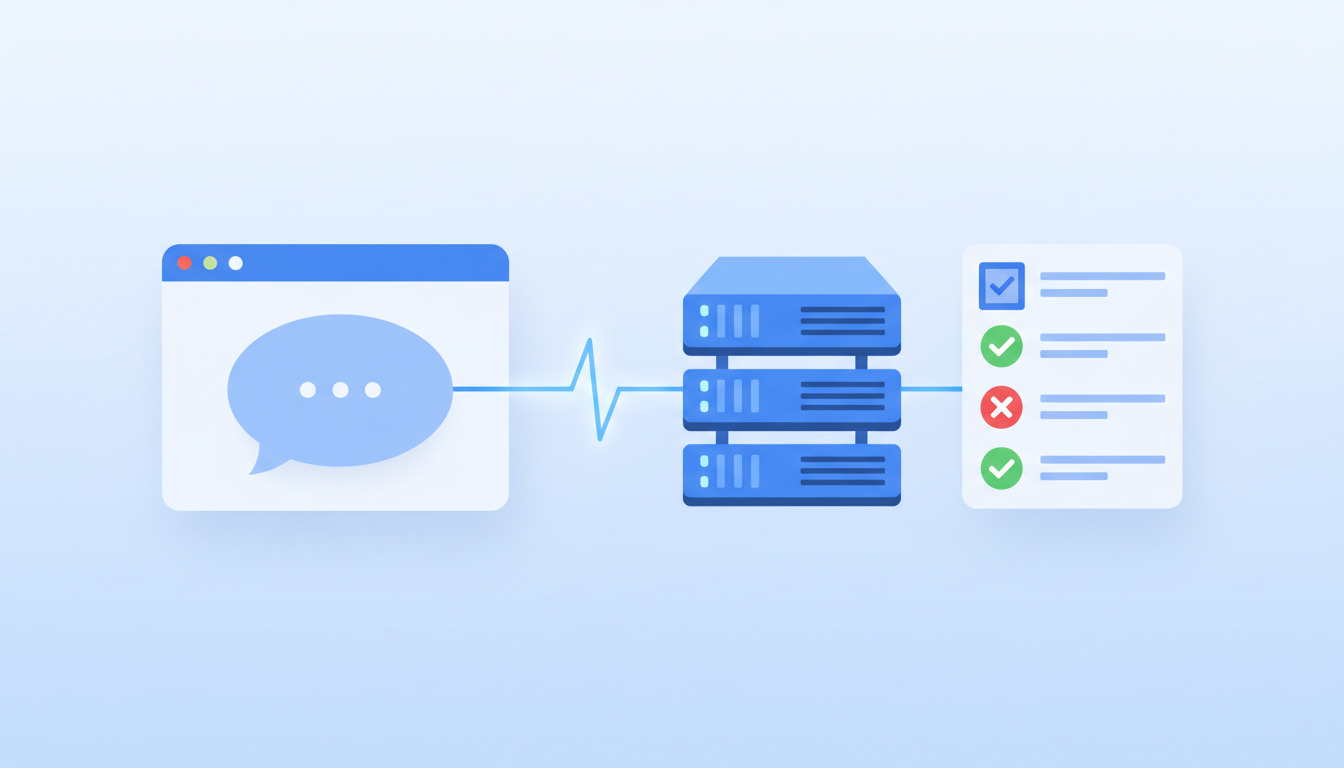
Ask your AI assistant what is deployed, where, and whether it worked. Nothing to install, no API key to paste.
Last December we released a local MCP package that let AI assistants talk to DeployHQ. It worked, but it asked you to install a package, create an API key and keep that key in a config file on your machine.
Today we are launching the DeployHQ hosted MCP server. You add one address to your assistant, sign in to DeployHQ, approve the connection, and start asking questions about your projects, servers and deployments in plain language.
https://mcp.deployhq.com/mcp
What is the hosted MCP server?
The Model Context Protocol (MCP) is an open standard that lets AI assistants use external tools. If you want the background first, we cover it in MCP and the future of AI-integrated DevOps tools.
The hosted server is DeployHQ's MCP endpoint, run by us at mcp.deployhq.com. Because it is hosted, there is no package to install and no process to keep running. Your assistant connects to it over HTTPS and signs you in to DeployHQ through your browser. It acts as you, so it only sees what your DeployHQ user can already see.
What you can ask today
The hosted server is read-only at launch. It gives your assistant six tools:
-
list_accounts: the accounts you can use -
list_projects: your projects -
get_project: whether automatic deployments are on, plus the repository type, address and branch -
list_servers: a project's servers, with protocol, environment, branch, server group and auto-deploy setting -
list_deployments: a project's deployments, newest first, filterable by status or server -
get_deployment: one deployment in detail, including status, branch, revisions, timings, servers and build settings
That is enough to answer questions you would otherwise click through the dashboard for:
Which of my projects has gone the longest without a deployment?
Have any deployments of my-app failed recently?
Which servers does my-app deploy to, and which of them auto-deploy?
Which branch and revisions did the latest deployment of my-app use?
For a team or agency with dozens of projects, the first question alone replaces a lot of scrolling.
Try DeployHQ free and connect your assistant in a couple of minutes.
Connect your assistant
Setup differs slightly per client. The two you are most likely to use from a terminal:
Claude Code
claude mcp add --transport http --scope user deployhq https://mcp.deployhq.com/mcp
Then type /mcp in Claude Code and sign in to DeployHQ.
Codex
codex mcp add deployhq --url https://mcp.deployhq.com/mcp
Codex then asks you to sign in.
Gemini CLI, Cursor, VS Code, Claude.ai and ChatGPT are covered step by step in the hosted MCP setup guide and on the MCP server page.
What it can and cannot do
This is the section to check before you rely on it. It describes the server at launch, on 30 October 2026, and the MCP server page is always the current reference.
It can read accounts, projects, servers and deployments, as listed above.
It cannot:
- start, retry or roll back a deployment, or change any setting
- show server passwords, keys, host names or paths
- show environment variables or configuration file contents
- show account and billing details
- read deployment logs (not yet)
Repository addresses are shown without any user name or password. Lists are capped at 200 projects, 200 servers per project and the 500 most recent deployments of a project, and the assistant is told when a list has been cut short.
Which should you use: hosted MCP, the CLI or the local package?
| Hosted MCP server | DeployHQ CLI (dhq) |
Local MCP package | |
|---|---|---|---|
| Best for | Asking questions about your accounts, projects, servers and deployments | Deployments, rollbacks, logs and automation | Existing setups that create deployments or read logs through MCP |
| Install | Nothing | Install the CLI | npx deployhq-mcp-server |
| Authentication | Sign in to DeployHQ and approve | Your DeployHQ credentials | API key in a config file |
| Can deploy | Not yet | Yes | Yes |
| Can read logs | Not yet | Yes | Yes |
For anything that changes a deployment or needs logs today, we recommend the DeployHQ CLI. It also suits a coding agent well; our comparison of CLIs and MCP for coding agents explains why the two work best together. The local package is still supported for now, and our original launch post shows how it works.
You stay in control
- It acts as you. The first time your assistant connects, it sends you to DeployHQ to sign in. It sees only what you can already see.
- It is read-only. At launch it cannot start, retry or roll back a deployment, or change a setting. That is a sensible default for giving an AI assistant access to production systems; the reasoning is similar to the read-only guardrails we recommend for database access.
- Admins can switch it off. An account administrator can turn assistant access off for the whole account under Settings > Account & Access > AI Assistants (MCP). It takes effect immediately.
- You can disconnect at any time, and DeployHQ emails you when an application is approved.
A plan with API access is required. Accounts that use single sign-on cannot yet connect assistants that sign in through the browser, such as Claude.ai and ChatGPT. A local assistant such as Claude Code can still use an API key in that case; the setup guide explains how.
What is coming next
Write tools are coming soon, as we extend the hosted server beyond these six read tools. We are also working on broader support for browser-based assistants such as Claude.ai and ChatGPT, including custom connectors. We will announce each addition on the MCP server page and on this blog as it ships.
Frequently asked questions
Do I need to install anything?
No. You add https://mcp.deployhq.com/mcp to your assistant, sign in to DeployHQ and approve the connection.
Which AI assistants work with it?
Claude Code, Codex, Gemini CLI, Cursor, VS Code, Claude.ai and ChatGPT. Which ChatGPT plans can add custom MCP servers is decided by OpenAI and changes from time to time.
Can it deploy, roll back or read deployment logs?
Not yet. At launch it is read-only, so it can look at your accounts, projects, servers and deployments but cannot start, retry or roll back a deployment, change a setting or read logs. For those, use the CLI today; write tools are coming soon.
Can the assistant see my server passwords or API keys?
No. It cannot show server passwords, keys, host names or paths, environment variables, configuration file contents, or account and billing details. Repository addresses are shown without any user name or password.
Who can use it, and can we turn it off?
It needs a plan with API access, and it acts as the user who connects, so it only sees what that user can already see. It is on by default, and an account administrator can switch it off for the whole account under Settings > Account & Access > AI Assistants (MCP). Disabling all AI features for the account also blocks it.
Does it work with single sign-on?
Not for every assistant yet. Accounts that use single sign-on cannot connect assistants that sign in through the browser, such as Claude.ai and ChatGPT. A local assistant such as Claude Code can still use an API key.
Does it work with two-factor authentication?
Yes. If your account requires two-factor authentication, turn it on for your own DeployHQ sign-in before you connect an assistant that signs in through the browser, such as Claude.ai or ChatGPT. It does not apply when an assistant uses an API key.
Does it work if my account restricts IP addresses?
Assistants that run on your own computer connect from your own address, so they work. Claude.ai and ChatGPT connect from their provider's cloud, not from your network, so an account that only allows specific IP addresses blocks them.
Is the local MCP package still supported?
Yes, it is still supported for now. The hosted server is our recommendation for new setups that only need to read information, and the CLI is our recommendation for deployments and logs.
Get started
- Create a DeployHQ account or open your existing one.
- Add
https://mcp.deployhq.com/mcpto your assistant using the setup guide. - Sign in, approve, and ask which of your deployments failed this week.
If you already run your deployments from Git, automatic deployments and the assistant fit together well: the assistant tells you what happened, and DeployHQ keeps doing the deploying. For the wider picture of how AI tools are changing deployment work, see how AI coding assistants are changing the way we deploy code.
Questions or feedback? Email support@deployhq.com or find us on X at @deployhq.