If you have searched for how to run AI locally
, self-hosted ChatGPT
, or Ollama Open WebUI
, you have probably noticed something: every tutorial jumps straight into install commands without ever explaining the stack itself. What is Ollama actually doing? Why do you also need Open WebUI? Where does Nginx fit? Which model should you pick — and how do you not waste a weekend running a 70B model on a CPU-only VPS that will never finish a single response?
This guide is the foundational primer for the Ollama + Open WebUI self-hosting stack. We will cover what each component does, how the pieces connect, the trade-offs versus hosted APIs (ChatGPT, Claude, Gemini), a model-picking decision matrix, and a minimal install path. When you are ready to put it into production with TLS, zero downtime deployments, and model-specific tuning, we link out to the deeper guides.
TL;DR
- Ollama is the model runtime — it pulls, loads, and serves open-source LLMs over a local HTTP API at
http://127.0.0.1:11434. - Open WebUI is the browser interface — chat history, RAG document upload, multi-user accounts, model gallery, prompt templates.
- Nginx is the public-facing reverse proxy with TLS — never expose Ollama or Open WebUI directly to the internet.
- For a small 7B model you need ~6 GB free RAM. For 70B+ you need a GPU with 24 GB+ VRAM or a very patient CPU.
- Hosted APIs win on raw quality at the frontier (GPT-5, Claude Sonnet 4.5). Self-hosted wins on privacy, fixed cost, model variety, and offline capability.
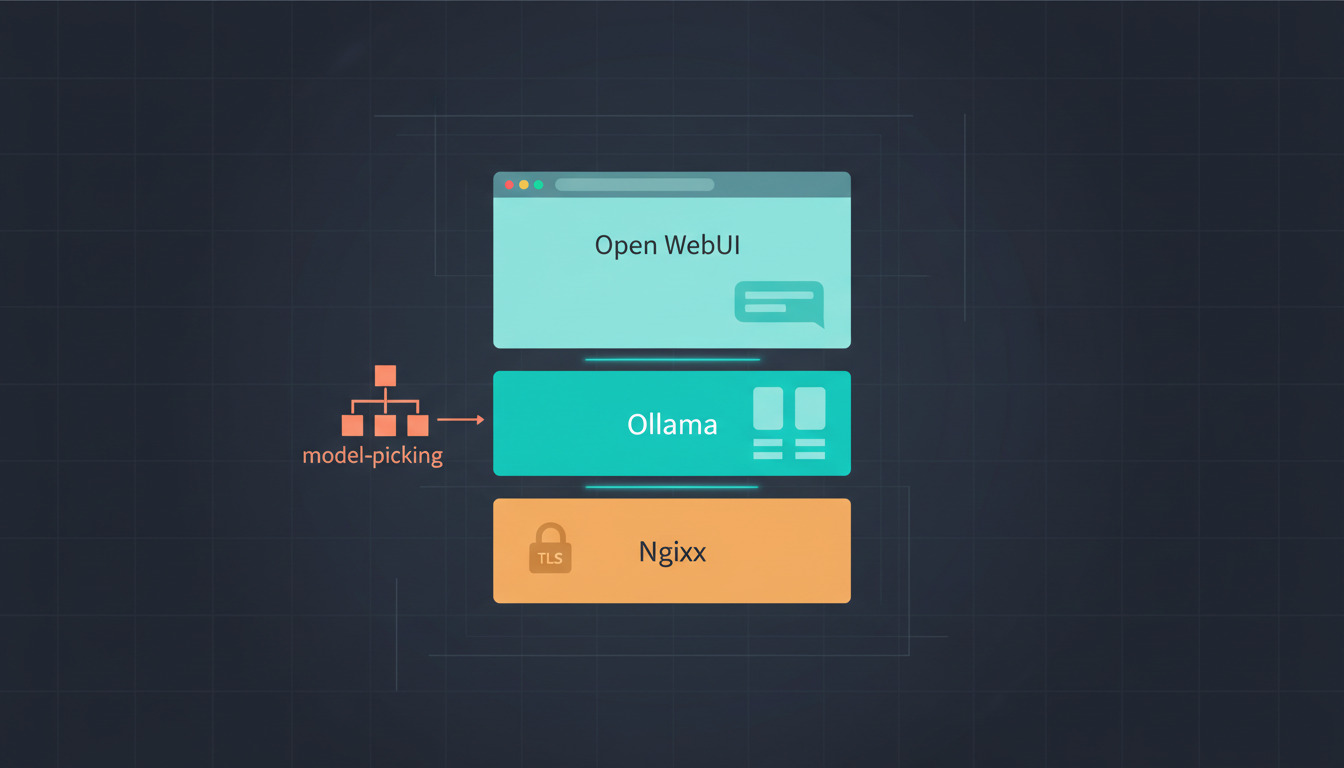
What this stack actually is
Most self-host ChatGPT
guides hand-wave over architecture. Here is the precise picture.
flowchart LR
    Browser["Browser<br/>(your laptop, phone)"]
    Nginx["Nginx<br/>TLS + reverse proxy<br/>:443"]
    OW["Open WebUI<br/>chat UI, RAG, auth<br/>:3000 or :8080"]
    Ollama["Ollama<br/>model runtime<br/>:11434"]
    Models["Local models on disk<br/>~/.ollama/models"]

    Browser -->|HTTPS| Nginx
    Nginx -->|HTTP loopback| OW
    OW -->|OLLAMA_API_BASE_URL| Ollama
    Ollama -->|memory-map GGUF files| Models
Three components, three responsibilities. None of them is optional in a real deployment, and conflating them is the single most common source of confusion in this space.
Ollama — the model runtime
Ollama is the engine. It downloads quantised model weights (GGUF format, roughly 4-bit or 5-bit compressed versions of the original FP16 weights), loads them into RAM or VRAM, and exposes a simple HTTP API:
curl http://127.0.0.1:11434/api/generate -d '{
  "model": "llama3.2",
  "prompt": "Why is the sky blue?"
}'
Under the hood, Ollama wraps llama.cpp — the C++ inference library that made it possible to run LLMs on consumer hardware. You will never interact with llama.cpp directly; Ollama handles model management (ollama pull, ollama list, ollama rm), keeps recently used models warm in memory, and lazy-loads new ones on demand.
Two environment variables are worth knowing:
OLLAMA_KEEP_ALIVE— how long a model stays loaded after the last request. Default is 5 minutes. Set it to24hif you have one constant-use model and enough RAM, or to0to unload immediately if RAM is tight.OLLAMA_NUM_PARALLEL— how many requests Ollama processes in parallel against the same model. Default 1. Bumping to 2-4 helps if multiple users hit the same model simultaneously, at the cost of more RAM.
The DeepSeek deep-dive covers these in production-grade detail with real benchmarks, including a Modelfile, GPU vs CPU latency numbers, and a hardware sizing table — link further down.
Open WebUI — the browser experience
Ollama's HTTP API is great for scripts but unusable for daily chat. Open WebUI (50k+ GitHub stars) is the UI layer. What you actually get:
- Chat with persistent history — SQLite-backed conversation storage by default; PostgreSQL in production
- Multi-user accounts — admin and user roles, controlled by the
WEBUI_AUTHenvironment variable - Model gallery — browse and
ollama pulldirectly from the UI without touching SSH - RAG document upload — drop a PDF, Open WebUI chunks it, embeds it, and the model can answer questions about it
- Prompt templates and system prompts per workspace — useful for keeping a
code reviewer
prompt separate from amarketing writer
prompt - Cloud API connectors (optional) — Open WebUI can also talk to OpenAI, Anthropic, or Google Gemini APIs alongside your local Ollama, so you can A/B-test self-hosted Llama 3 against GPT-5 in the same UI
The two environment variables you will hit first:
WEBUI_AUTH=true— set this before exposing Open WebUI to the public internet. The default istruein recent versions, but earlier builds shipped with auth disabled by default, and any tutorial older than mid-2024 may quietly skip past this. An unauthenticated Open WebUI on port 8080 facing the internet is a free LLM for whoever finds it on Shodan.OLLAMA_API_BASE_URL=http://127.0.0.1:11434— tells Open WebUI where Ollama is. If you run Open WebUI in Docker and Ollama on the host, set this tohttp://host.docker.internal:11434(or use--network=host).
Reference: Open WebUI documentation and the features page for the current capability list.
Nginx — the only thing the public internet talks to
Neither Ollama nor Open WebUI should be reachable directly from the internet. Both default to plain HTTP, neither was designed to be a public-facing TLS terminator, and exposing port 11434 is essentially free GPU time, please abuse me.
The pattern is always the same:
Internet (HTTPS :443)
        ↓
   Nginx (TLS via Let's Encrypt)
        ↓ (HTTP loopback)
   Open WebUI (:3000 or :8080)
        ↓ (HTTP loopback)
   Ollama (:11434)
Bind both Open WebUI and Ollama to 127.0.0.1, configure UFW or iptables to drop everything except 22, 80, 443, and let Nginx be the only thing that touches 0.0.0.0. The DeepSeek guide has a battle-tested Nginx vhost with proxy_buffering off (critical for streaming token-by-token responses) and 600-second read timeouts (long generations on CPU can exceed default proxy timeouts). Re-use that config; do not write your own from scratch.
Self-hosted vs hosted APIs: when does this make sense?
The honest answer is sometimes
. Self-hosting is not unconditionally better — it has real trade-offs.
| Hosted API (GPT-5, Claude, Gemini) | Self-hosted (Ollama + Open WebUI) | |
|---|---|---|
| Frontier capability | State-of-the-art reasoning, multimodal, long context | Trails frontier by 6-12 months on most tasks |
| Privacy | Prompts traverse third-party servers | Data never leaves your VPS |
| Cost shape | Per-token, scales linearly with usage | Fixed monthly VPS cost, unlimited inference |
| Latency | Network round-trip + provider queue | Local; constrained only by your CPU/GPU |
| Model choice | Whatever the provider ships | Any open model (Llama, Mistral, Qwen, DeepSeek, Gemma, Phi) |
| Customisation | API parameters, fine-tuning if offered | System prompts, RAG, custom Modelfiles, fine-tuning |
| Offline mode | None | Works without internet once weights are pulled |
| Compliance | Subject to provider's data handling | You control GDPR/HIPAA boundary |
| Operational burden | None | You manage updates, backups, monitoring |
Realistic picks:
I want maximum quality on hard reasoning tasks once a week
→ use the hosted API directly, you will not match GPT-5 on a $20/month VPS.I burn $200+/month on OpenAI API calls for repetitive workloads
→ self-hosting on a beefier VPS pays back fast.I cannot send customer data to third parties
→ self-hosted is the only option that does not require a Business Associate Agreement or DPA. The same logic applies to other tools: see our self-host GitLab on a VPS guide for the source-code equivalent of this argument.I want to experiment with 30 different open models without paying per token
→ self-hosted, easily.
For the broader hardware-vs-cost vs model-quality decision and how to budget VRAM against your real workload, our self-hosting AI models hardware guide lays out the numbers.
Picking a model: the decision matrix
This is where most people lose a weekend. The Ollama model library lists hundreds of models. You do not need to try them all. Pick by use case and hardware.
| Use case | Model class | Recommended starting point | RAM (Q4) | Notes |
|---|---|---|---|---|
| General chat, low spec | Small instruct | llama3.2:3b or phi3.5 |
~3 GB | Runs on a $10/month VPS without a GPU |
| General chat, mid spec | 7-8B instruct | llama3.1:8b or mistral:7b |
~6 GB | The defaultchoice — quality plateau for daily chat |
| Coding assistant | Code-specialised | qwen2.5-coder:7b or deepseek-coder-v2:16b |
~6-12 GB | Trained on code, far better than a general 7B for autocomplete |
| Reasoning / step-by-step | Reasoning-tuned | deepseek-r1:7b or larger |
~6 GB+ | Slower because it generates a long chain-of-thought before answering |
| RAG over your documents | Strong instruction-following | llama3.1:8b + a good embedding model (nomic-embed-text) |
~6 GB + ~500 MB | Open WebUI handles the chunking and retrieval automatically |
| Multimodal (image input) | Vision model | llava:7b or llama3.2-vision:11b |
~6-9 GB | OCR, image Q&A, screenshot description |
| Frontier-quality, beefy hardware | 70B class | llama3.3:70b or qwen2.5:72b |
~40 GB+ | Needs a GPU with 48 GB VRAM or two consumer cards |
The 3-to-6-to-13 rule of thumb (Q4 quantisation):
- A 3B model needs roughly 3 GB of RAM to load.
- A 7-8B model needs roughly 6 GB.
- A 13B model needs roughly 9-10 GB.
- A 70B model needs roughly 40 GB.
Add 1-2 GB of headroom for the OS, Open WebUI, and the model's KV cache. If you only have 8 GB total on your VPS, do not try to squeeze in a 13B model — Linux's OOM killer will end your ollama process at the worst possible moment.
For model-specific deep-dives that include real latency numbers and hardware sizing per parameter count, see the production install and DeepSeek guides linked at the end of this article.
Minimal install path
This is the foundational install. It is intentionally lighter than the production guides linked above — the goal here is to get you talking to a model in the next ten minutes. When you are ready to harden it (TLS, systemd units, automated rollbacks), follow the deeper guides.
Prerequisites
- Ubuntu 22.04 or 24.04 VPS with at least 8 GB RAM (4 GB if you stick to a 3B model)
- A sudo user with SSH access
- 20 GB of free disk for the OS and a couple of models
1. Install Ollama
curl -fsSL https://ollama.com/install.sh | sh
ollama --version
The installer registers a systemd service that listens on 127.0.0.1:11434 by default — exactly what you want. Verify it is running:
systemctl status ollama
2. Pull your first model
ollama pull llama3.2:3b   # ~2 GB download, runs on small VPS
ollama run llama3.2:3b "Explain TCP backpressure in two sentences."
If that prints a response, the runtime layer works. You can stop here if you only want a CLI tool.
3. Run Open WebUI
The simplest path is Docker:
docker run -d \
  --name open-webui \
  --network=host \
  -e WEBUI_AUTH=true \
  -e OLLAMA_API_BASE_URL=http://127.0.0.1:11434 \
  -v open-webui:/app/backend/data \
  --restart=always \
  ghcr.io/open-webui/open-webui:main
Open http://your-server-ip:8080 in a browser. The first account you create becomes the admin.
Do not stop here if your VPS is on the public internet. Open WebUI on port 8080 with no TLS is fine for a local network, but exposing it to the internet without Nginx + Let's Encrypt is asking to leak whatever you and your colleagues type into it.
4. Put Nginx in front (production-bound)
For the full Nginx vhost with TLS, proxy_buffering off (critical so streaming token-by-token responses are not held in a buffer), and the 600-second read timeouts you need for slow CPU generations, graduate to the production install — link in the next section.
Open WebUI features worth knowing about
Most tutorials install Open WebUI and then never come back to it. That is a mistake — half the value of self-hosting is in the features the hosted UIs do not give you.
RAG: chat with your own documents
Click the + next to the chat input and upload a PDF, Markdown file, or text dump. Open WebUI:
- Chunks the document (default ~1000 tokens per chunk with overlap)
- Embeds each chunk using a local embedding model (pull
nomic-embed-textfor a good free default) - Stores embeddings in a local vector store
- Retrieves the top-K chunks for each user question and injects them into the prompt
This is real RAG, not a the model has read it
hack. Model size matters less here than instruction-following quality — llama3.1:8b outperforms larger but less instruction-tuned models for retrieval tasks.
Multi-user mode
Set WEBUI_AUTH=true (the default in recent versions). The first registered account is admin. From the admin panel you can:
- Approve or block new sign-ups
- Restrict which models each user can access
- Set per-user rate limits
- Audit conversation logs
For a small team, this turns a single $20/month VPS into a private LLM service that several people can share without you having to worry about per-seat hosted-API billing.
Model gallery and Modelfiles
The Models
tab lets you pull new models from the Ollama library directly through the UI — no SSH needed. You can also create custom Modelfiles (system prompt, temperature, context window) and save them as named personas
— think of it as Open WebUI's answer to OpenAI's GPT Builder, except you own the runtime.
Cloud API connectors
Open WebUI can talk to OpenAI, Anthropic, and Google Gemini APIs at the same time as your local Ollama. Why bother? Because then you can:
- Side-by-side compare a local 7B model against GPT-5 in the same conversation
- Route cheap repetitive requests to local Ollama and hard reasoning requests to a frontier API from the same UI
- Keep using the frontier APIs without your team scattering into half a dozen separate ChatGPT/Claude subscriptions
Where to go from here
You now understand the stack: Ollama runs the model, Open WebUI is the UI, Nginx terminates TLS in front of both. From here, pick the path that matches your actual goal:
- You want a hardened, automated production install → How to Self-Host Your Own AI Chat Interface on a VPS walks through the full Docker Compose + Nginx + DeployHQ pipeline.
- You want to run DeepSeek-R1 specifically with proper hardware sizing → Run DeepSeek on a VPS with Ollama: Complete Self-Host Guide.
- You are still deciding whether self-hosting is worth it → re-read the trade-off table above, then dig into the cost, hardware, and model-quality numbers in the self-hosting AI models hardware guide linked earlier.
- You want your documentation to be readable by AI tools and code assistants → How to Make Your Documentation AI-Friendly: llms.txt, Content Negotiation, and Markdown Serving.
Once your stack is running, push your docker-compose.yml, Nginx vhost, and a model-pull script into a Git repo and connect it to DeployHQ. Every config change — new model, tweaked system prompt, updated Nginx rule — flows through the same automatic deployments from Git that you would use for any other production app, with one-click rollback when a config change accidentally takes down chat at 4 PM on a Friday. You can deploy from GitHub or deploy from GitLab — same pipeline either way.
Start a free DeployHQ trial to run your AI stack through a real CI/CD pipeline, or see pricing for team plans.
Questions, war stories, or a model recommendation we missed? Email us at support@deployhq.com or ping us on @deployhq.