

Cloning an existing repository
What does cloning mean?
Cloning is essentially the process of downloading an existing repository hosted on a remote server to your own computer.
In this tutorial, I’m going to show you how to clone a remote repository hosted on GitHub, however the process is very similar between Git hosting providers.
Note: If you want to see how to push your repository for the first time, check out the previous tutorial to learn how to publish a Git repository.
Getting the remote repository URL
Finding the remote URL for your repository is fairly straight forward on GitHub. All you need to do is head on over to the overview page for your project.
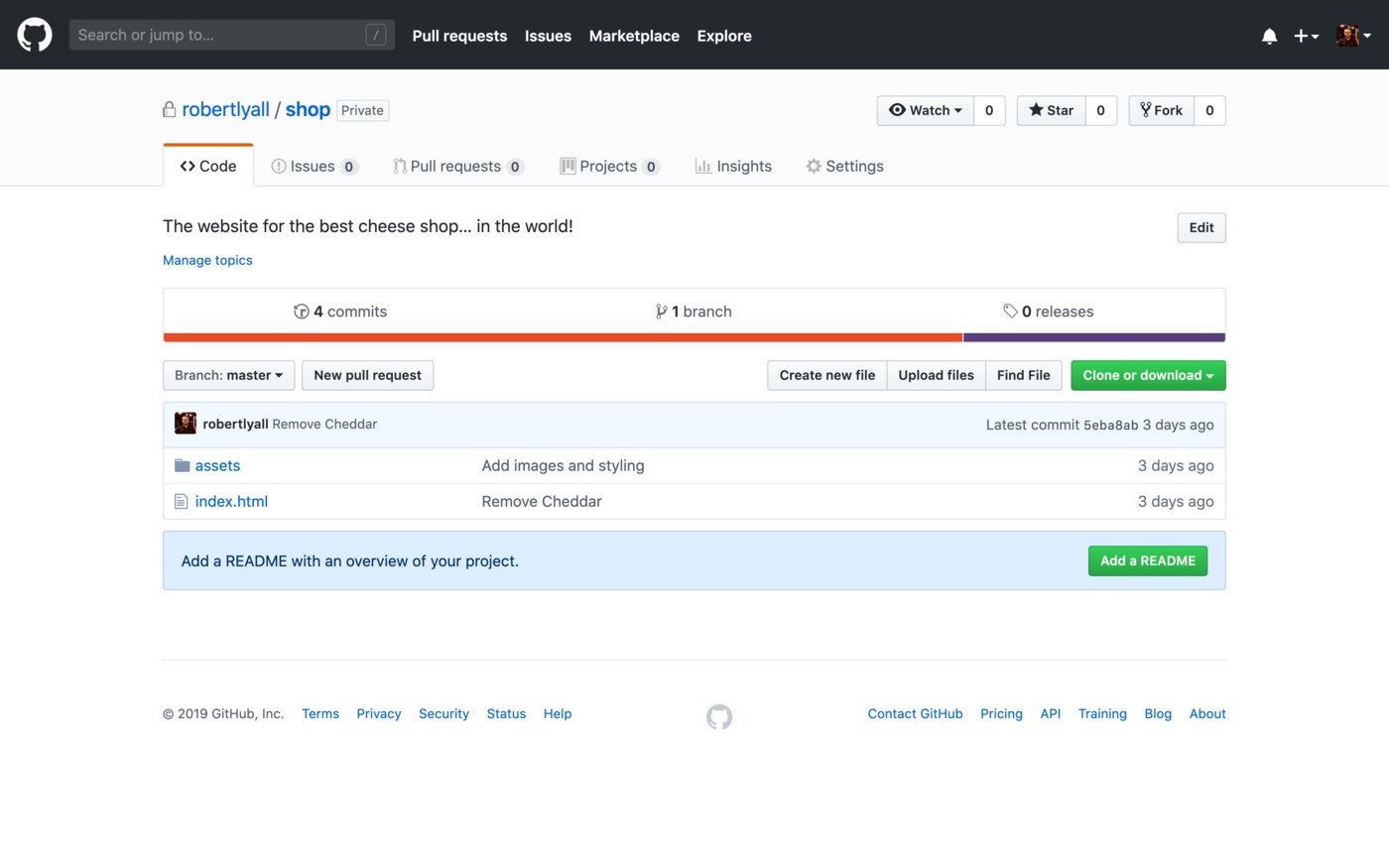
Next, click on "Clone or download" to open a small popup window.
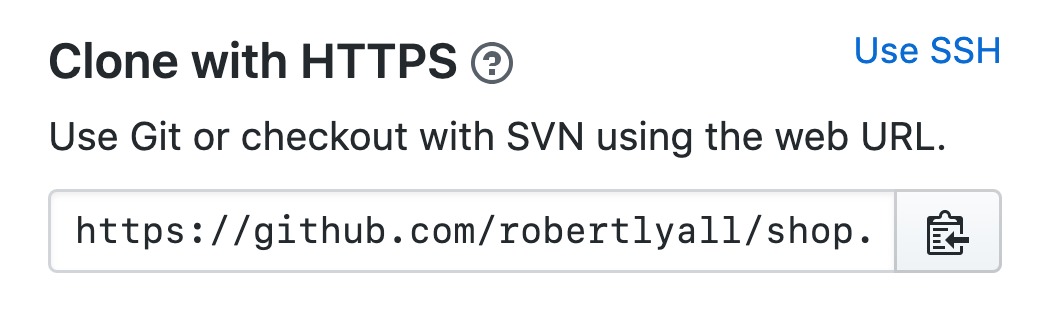
As we explained in the previous tutorial, there are two protocols you can use when working with Git; HTTPS and SSH.
Toggle to your preferred protocol by clicking the "Use SSH" or "Use HTTPS" links, then click the small button next to the URL to copy it to your clipboard.
Cloning the repository
Once you've got the repository URL, open up the command line and navigate to the directory where you want the code to live. I have a folder called Projects located inside my home directory where I keep all the code I work on.
When you're ready to clone type the following command, making sure to replace the URL with the one you just copied from GitHub:
git clone git@github.com:robertlyall/shop.git
If successful, the output will look a little something like this:
Cloning into 'shop'...
remote: Enumerating objects: 27, done.
remote: Counting objects: 100% (27/27), done.
remote: Compressing objects: 100% (23/23), done.
remote: Total 27 (delta 2), reused 27 (delta 2), pack-reused 0
Receiving objects: 100% (27/27), 44.39 KiB | 478.00 KiB/s, done.
Resolving deltas: 100% (2/2), done.
By default, Git will create a folder with the same name as the repository, however you can change this by providing an extra argument to the git clone command.
For example, if you'd rather clone the project into a folder named shop-website, you would enter the following command:
git clone git@github.com:robertlyall/shop.git shop-website
Cloning a specific branch
By default, git clone checks out the repository's default branch (usually main or master). If you want to start working on a different branch right away, use the -b flag:
git clone -b develop git@github.com:robertlyall/shop.git
This clones the full repository and checks out the develop branch immediately, saving you an extra git checkout step after cloning.
Shallow clone
A shallow clone fetches only the most recent commit rather than the full history. This is common in CI environments where the complete history is not needed and you want faster clone times:
git clone --depth 1 git@github.com:robertlyall/shop.git
Note: Shallow clones have limitations. Commands that traverse history such as git bisect will only see the fetched commits.
Cloning with submodules
If the repository contains submodules, passing --recurse-submodules initialises and clones them automatically:
git clone --recurse-submodules git@github.com:robertlyall/shop.git
Without this flag, submodule directories will be empty after cloning and you will need to run git submodule update --init separately.
Automatic deployments with DeployHQ
Once your code is cloned and ready, DeployHQ can deploy it to your servers automatically from any Git repository. Connect your GitHub, Bitbucket, GitLab, or Codebase repository and every push triggers the right deployment.