

Creating a repository
Navigating to the project’s working directory
Before running the Git command to create the repository, we need to make sure that we’re in the right directory. The process for doing this differs slightly between operating systems.
If you need help getting set up, here’s a handy guide to install and configure Git.
Windows
Open the Command Prompt from Start > Windows System, or by pressing Windows + R then typing cmd and clicking OK.
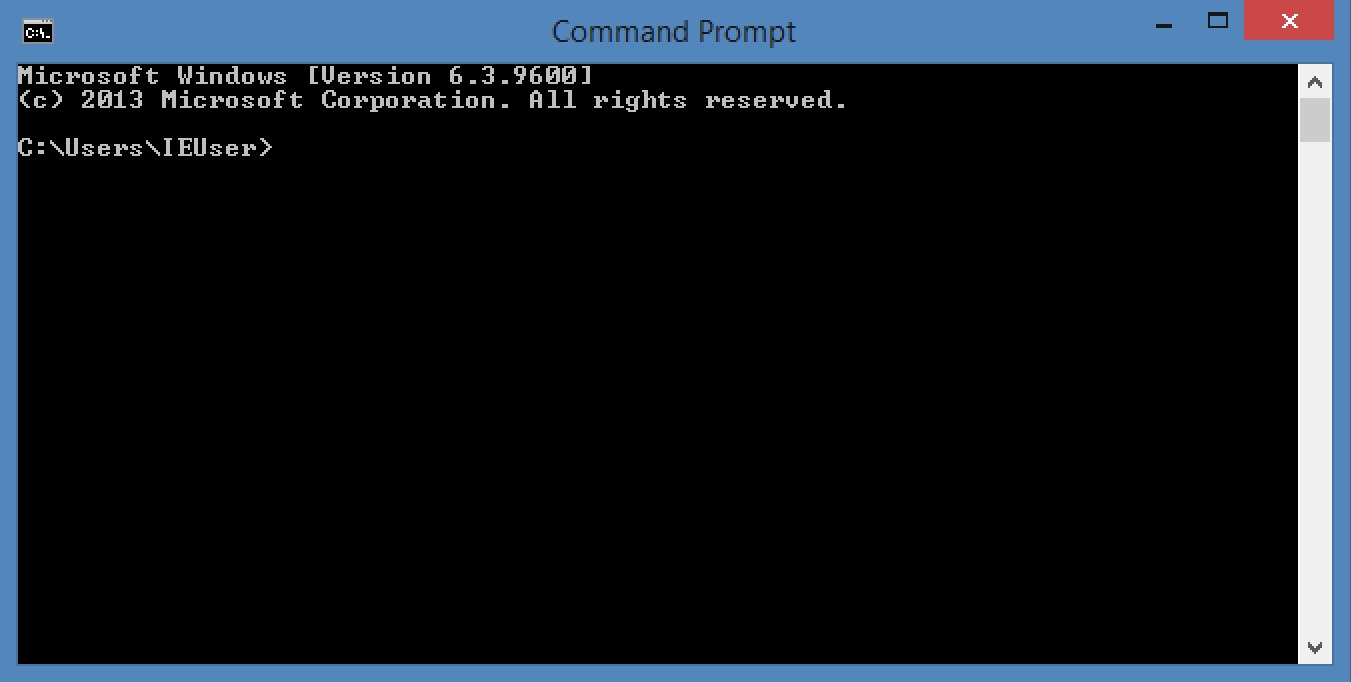
If you have created a folder for your project called shop in a Projects folder in your home directory, you’ll need to run the following command:
cd Projects\shop
Alternatively, you can click and drag the folder into the Command Prompt window which will automatically enter the path to the directory.
Now you’re ready to actually create the repository.
Mac
Open the Terminal app which can be found in Applications > Utilities.
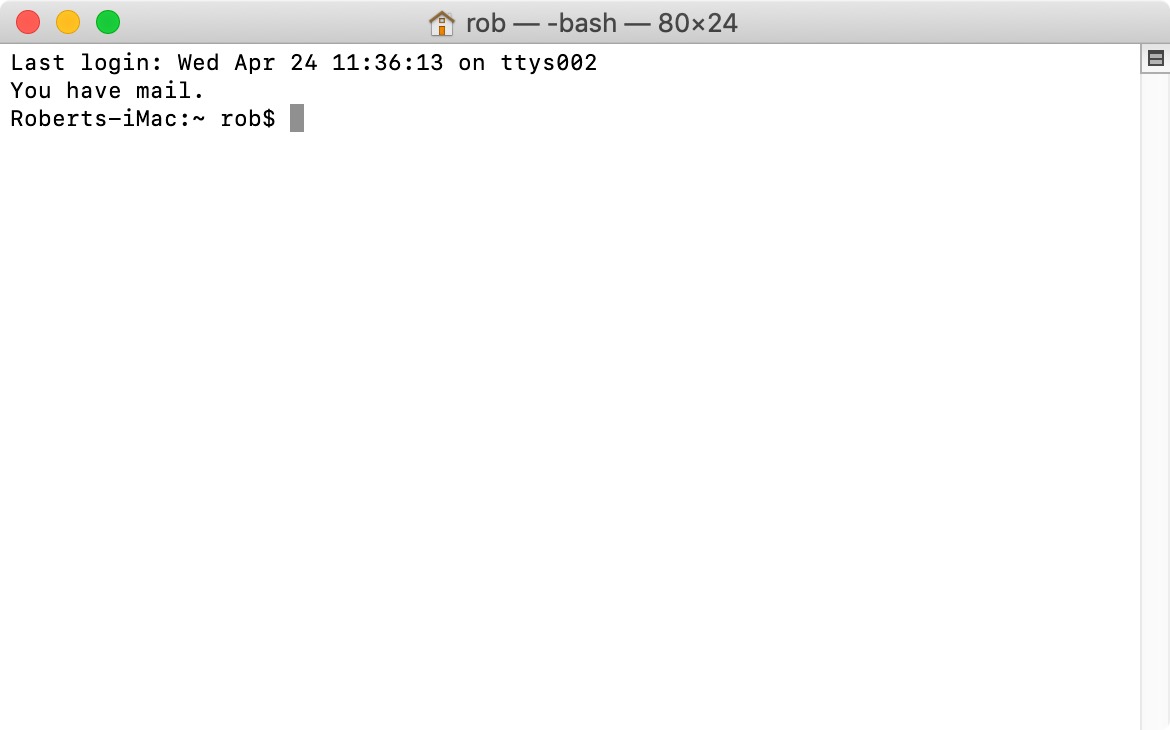
If you have created a folder for your project called shop in a Projects folder in your home directory, you’ll need to run the following command:
cd ~/Projects/shop
Alternatively, you can click and drag the folder into the Terminal window which will automatically enter the path to the directory.
Now you’re ready to actually create the repository.
Linux
Open the Terminal application from the start menu, or by pressing Ctrl + Alt + T.
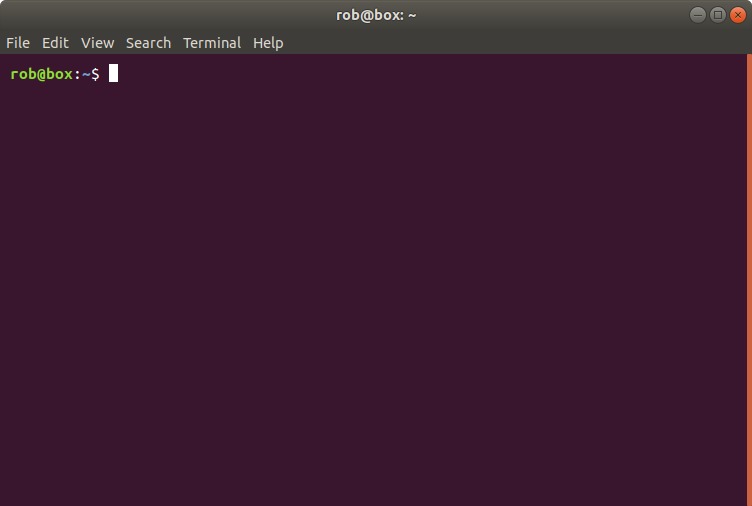
If you have created a folder for your project called shop in a Projects folder in your home directory, you’ll need to run the following command:
cd ~/Projects/shop
Now you’re ready to actually create the repository.
Actually creating the repository
Now that you’re in the right directory, enter git init in your command line and press enter to create a new empty Git repository. If successful, you should see a message like this:
Initialized empty Git repository in /Users/rob/Projects/shop/.git/
A hidden folder named .git will have just been created inside your project’s working directory. This folder contains all the information Git stores about your repository including historical changes, remote repository addresses, and more.
This .git folder is your local copy of the repository. Deleting the .git folder won’t delete any of the files in your project, however you’ll lose access to all of the historical changes tracked by Git.
In a future tutorial, you’ll learn how to upload your Git repository to a remote server to preserve any local changes, share them, and give everyone else working on the project the ability to download their own local copy of the repository.
Don’t worry if some of this doesn’t make a lot of sense right now. All you need to know is that the .git folder is created by running git init and it is your own version of the project’s repository.
Initialising into a specific directory
Instead of navigating to a directory first, you can provide a path directly to git init. Git will create the directory if it does not already exist:
git init my-new-project
This creates a my-new-project folder with an empty Git repository inside it, saving you a step when starting a brand new project.
Setting the initial branch name
By default, Git names the first branch master. Many teams now prefer main as the default branch name. You can choose a different name at creation time with the -b flag:
git init -b main
To avoid needing this flag every time, set a global default so every new repository uses your preferred branch name automatically:
git config --global init.defaultBranch main
Creating a bare repository
A bare repository stores only the Git object database — it has no working tree (no project files you can edit directly). Bare repositories are used as central remotes that multiple developers push to and pull from, such as the repositories hosted on GitHub, GitLab, or Codebase.
git init --bare project.git
Note: By convention, bare repository directories are named with a .git suffix (e.g. project.git) to make their purpose clear. You would not typically work inside a bare repository directly — instead, developers clone it and push changes back.
Next steps
Now that your repository is created, you're ready to start staging and committing files. Once you have some commits, you can publish your repository to a remote server so others can see your work.
With DeployHQ, every push to your repository can automatically trigger a deployment to your server — no manual steps needed.