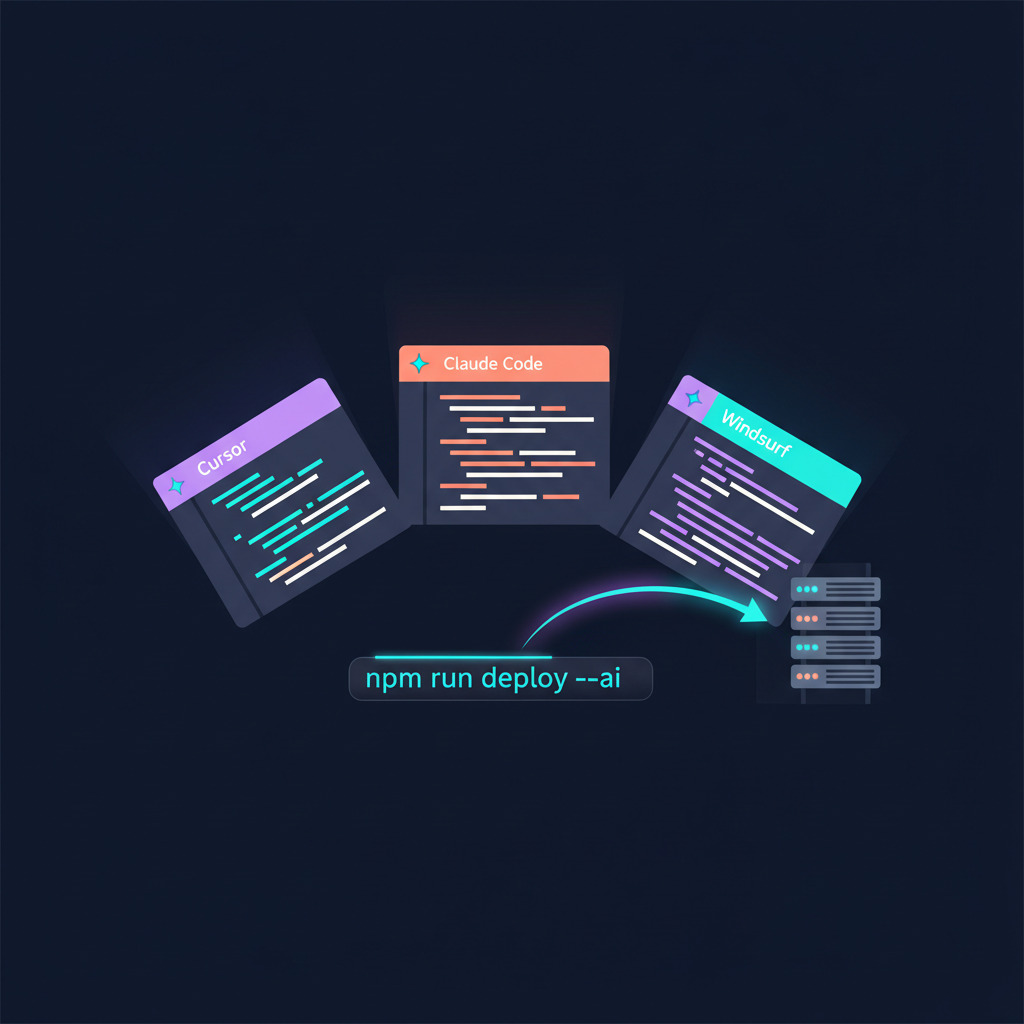
Your AI editor can write the code. It can run the tests. It can write the changelog. Then it stops at the one step that actually puts the work in front of users — the deploy. You alt-tab to a browser, click into a dashboard, find the right environment, hit a button, and wait. The whole point of an agent-driven workflow is that it stays in flow, and the deploy step keeps breaking it.
This post closes that gap. There are two ways to do it: one command that wires DeployHQ into your editor for you, and a set of guardrails you write yourself because nobody else can decide what your agent is allowed to ship.
The integration is one command
The dhq command-line tool can install a DeployHQ skill
directly into the AI coding agents on your machine, so they discover and drive dhq without you writing any glue. Check what it finds:
dhq skills list
That lists every supported agent — Claude Code, Cursor, OpenAI Codex, Windsurf — and whether the skill is already installed. Then:
dhq skills install
By default this installs for the user-scope agents detected on your machine. Project-scope agents such as GitHub Copilot are deliberately skipped, so running the command never silently modifies the repository you happen to be sitting in. To include one, name it:
dhq skills install --agent claude-code
dhq skills install --agent copilot      # project scope: writes into this repo
If you ran dhq hello when you first set up the CLI, this already happened — skill installation is part of guided onboarding. (An older dhq setup <agent> command still works but is deprecated; dhq skills install detects your agents instead of making you name them one at a time.)
Two more things make the CLI legible to an agent without any configuration from you. The full command catalog is available as structured data:
dhq commands --json
…and the CLI identifies its caller automatically, reading the environment variables that Claude Code, Codex, Cursor and Windsurf set, plus standard CI variables. You can set DEPLOYHQ_AGENT explicitly for anything it does not recognise:
DEPLOYHQ_AGENT=my-bot dhq deploy -p my-app --json
If your code already lives in Git, automatic deployments keep your servers in step with the repository, and the skill lets your editor handle everything around them.
The commands your agent will actually reach for
The surface an agent needs is small. Deploy a branch to a server and watch it:
dhq deploy -p my-app -s production --branch main --wait
With --wait the CLI streams live progress and exits non-zero on failure, which is what makes it usable inside a script or an agent loop. On a failure it prints the logs and the suggested recovery commands by itself — so an agent that can read stdout already knows what to do next. Server names match case-insensitively and by partial name, so -s prod finds Production Web
as long as only one server contains prod
; if several match, the CLI asks you to be specific. If the project has only one server you can drop -s entirely.
Check state without changing anything:
dhq status                                      # deployment dashboard
dhq deployments list -p my-app
dhq deployments show <deployment-id> -p my-app
dhq deployments logs <deployment-id> -p my-app
And when something is wrong:
dhq rollback <deployment-id> -p my-app
dhq retry <deployment-id> -p my-app
Note that rollback and retry take a deployment id, not an environment name. That is a useful property for agent safety: the agent cannot gesture vaguely at production
— it has to name the exact deployment it means.
Before a first deploy, there is a pre-flight that runs the same connectivity checks a real deployment runs:
dhq test-access -p my-app -s production --wait
Every command takes --json, with optional field selection, which is the form you want when an agent is parsing the result rather than reading it.
If you would rather use MCP than a CLI
From version 0.23 of the CLI, one command points you at the hosted MCP server:
dhq mcp
That prints the setup for the hosted server at https://mcp.deployhq.com/mcp, including the claude mcp add command for Claude Code and the connector steps for Claude Desktop. Nothing to install: you sign in to DeployHQ from your assistant. The hosted MCP server announcement has the full details. As of 30 October 2026 the hosted server is read-only, so your assistant can look at accounts, projects, servers and deployments but cannot deploy, roll back or read logs. Write tools are coming soon. For now, use the hosted server for questions and the CLI for anything that changes a deployment.
The local package is still supported for now. dhq mcp --local starts it over stdio, the MCP server documentation covers its setup, and the original launch post explains the thinking behind it.
Which should you pick? For deployment specifically, the action surface is small and well-bounded — deploy, status, logs, rollback — and a CLI is the right shape for that: universal, fast, and already supported everywhere. MCP in general earns its keep when you want the agent's client to surface deployment state in its own UI, or when you are composing DeployHQ with other MCP tools in one context. We went through the trade-offs properly in our comparison of CLIs and MCP for coding agents.
Either way, the capability is now installed rather than hand-built. What is left is the part that matters more.
The part you still have to write: restraint
dhq skills install teaches your agent how to deploy. It does not decide when it may. A coding agent will do exactly what you let it do, so the judgement belongs in your repository, in the rules file your editor reads.
If you want the broader picture of how DeployHQ thinks about tool design for AI editors, that lives on our agents page — but the three configurations below are the practical version.
Claude Code
Claude Code governs shell commands with permission rules in .claude/settings.json. Allow the read-only commands outright and make the destructive ones prompt:
{
  "permissions": {
    "allow": [
      "Bash(dhq status *)",
      "Bash(dhq deployments list *)",
      "Bash(dhq deployments logs *)",
      "Bash(dhq test-access *)"
    ],
    "ask": [
      "Bash(dhq deploy *)",
      "Bash(dhq rollback *)"
    ]
  }
}
The trailing * is prefix matching: Bash(dhq status *) matches dhq status and anything after it, and the space before the * is part of the rule. A :* suffix means the same thing — Bash(dhq status:*) is equivalent — but only at the end of a pattern, and the space form is what Claude Code itself writes when you choose don't ask again
. Note also that ask beats allow: a matching ask rule prompts even when a more specific allow rule also matches.
Then tell Claude when to reach for the CLI. That belongs in CLAUDE.md at the project root — as we covered in our guide to configuring AI coding assistants with CLAUDE.md, AGENTS.md and Copilot instructions, this is the right place for behavioural rules:
## Deployment

This project uses DeployHQ. Use the `dhq` CLI for all deploys.

- After the test suite passes, propose `dhq deploy -p my-app -s staging --wait`
  and wait for my approval.
- Never deploy to production without an explicit instruction containing the word
  "production".
- For a failed deploy, read the logs the CLI already printed before suggesting a
  fix. Fetch more with `dhq deployments logs <id> -p my-app`.
- For a regression in production, propose a rollback of the specific deployment
  id first, then debug.
The division is worth internalising: the capability is in settings.json, the judgement is in CLAUDE.md. Neither one substitutes for the other.
If you would rather script against the API directly, our tutorial on automating deployments with Claude Code and the API shows that route.
Cursor
Cursor's project rules live in .cursor/rules/ as .mdc files with frontmatter. The extension matters — a plain .md file in that directory is ignored by the rules system, because it has nowhere to declare description, globs and alwaysApply. (The old single-file .cursorrules at the repo root is no longer the current format.)
Create .cursor/rules/deployment.mdc:
---
description: How to deploy this project with DeployHQ
alwaysApply: true
---

We deploy with DeployHQ via the `dhq` CLI.

When asked to deploy:
1. State the target server in your message before running anything.
2. Use `dhq deploy -p my-app -s staging --wait` for staging.
3. For production, ask me to confirm in chat before issuing the command.
4. `--wait` streams progress and exits non-zero on failure — read that output
   rather than polling.
5. On failure, summarise the error from the logs before suggesting a fix.
Windsurf
Windsurf's agent can run shell commands, so dhq works as soon as it is on $PATH. The work is in the rules file, and the location has moved: Windsurf's agent is now documented as part of Devin. Rules load from these places:
.devin/rules/*.md: the current location.windsurf/rules/*.md: legacy, still loaded alongside it.windsurfrulesat the repo root: legacy, still imported by default
Windsurf also reads AGENTS.md, which is worth knowing if you would rather keep one portable instructions file than maintain three editor-specific ones.
DeployHQ is wired through the `dhq` CLI.

- `dhq status`, `dhq deployments list` and `dhq deployments logs` are safe — run
  them whenever they help.
- `dhq deploy` requires an explicit instruction. Do not infer it from context.
- For staging, confirm the project and server in your response, then run.
- Refuse to deploy to production unless my last message contains the word
  "production".
- After a deploy, run `dhq status` once to confirm, then stop.
Safety patterns that survive contact with an agent
Four patterns worth wiring into every editor config, whichever one you use.
Approval gates. Use the editor's own permission system — ask in Claude Code, an explicit confirmation step in Cursor's rules, the production-keyword check in Windsurf — so destructive commands always pause for a human. Installing the integration takes a minute; undoing a wrong-server deploy does not.
Name the server, never default to it. dhq deploy will auto-select when a project has exactly one server, which is convenient for you and a loaded gun for an agent. Require -s explicitly in your rules so the agent has to state intent.
Pre-flight instead of guessing. dhq test-access -p my-app -s production --wait runs the real connectivity checks. Make it the thing an agent reaches for when a deploy looks risky — it changes nothing and it catches credential, firewall and SSH-key problems before a release fails.
Deploy windows. If you only ship to production during business hours, write it down: Do not propose production deploys outside 09:00–17:00 UTC, Mon–Fri.
Plain language in a rules file is enforcement an agent respects.
And keep one-click rollback within reach. The point of letting an agent deploy is not that it will never be wrong; it is that being wrong is cheap to undo.
A real workflow, end to end
Here is a small bug fix with the integration in place. The prompt:
There's a 500 on /api/users when the email field is empty — the staging logs show a null deref. Fix it, run the tests, deploy to staging, then deploy to production if everything's green.
Inside Claude Code, the run looks like this:
- Agent reads the handler, finds the missing null check, edits the file.
- Agent runs
npm test— passes. - Agent proposes
dhq deploy -p api -s staging --wait. You approve. - The CLI streams progress; the agent reads the result from the same output rather than polling for it.
- Agent runs a smoke check —
curlagainst the staging endpoint with an empty email. - Agent reports:
Staging deploy succeeded, smoke check returns the expected 400. Your prompt mentioned production — confirm to proceed?
- You type
yes, deploy production.
Agent runsdhq deploy -p api -s production --wait. - Agent confirms the deployment succeeded, then stops.
That entire loop happens in the editor. No browser, no dashboard, no alt-tab. The agent did not autonomously ship to production — you confirmed at the gate — but every other step was hands-off.
The pattern generalises beyond DeployHQ. We looked at the broader category in the developer CLIs that AI coding agents actually use well: the ones that win have small, predictable surfaces, machine-readable output, and clear permission models. dhq was designed to fit that mould, which is why the skill is a one-liner rather than an integration project.
Why this beats pure CI/CD for iteration speed
CI/CD pipelines remain the right backbone for production releases, scheduled deploys, and team-wide policy. This does not replace them — and if you want the deeper take on agents inside pipelines rather than inside editors, that is the subject of running AI coding agents headlessly in CI/CD.
But for the dozens of small fixes in a single working session — the typo in an error message, the missed null check, the config tweak — the round trip through push to branch, wait for CI, click deploy in a dashboard
is pure friction. Editor-driven deploys collapse it into one conversation. The agent fixes, tests, deploys, verifies and reports, and you stay on the next problem instead of context-switching into deployment plumbing.
Get started
If you already use Claude Code, Cursor, Codex or Windsurf, this is a five-minute job rather than a project: install the CLI, run dhq skills install, then write the guardrails that decide what your agent may ship. Start in staging, watch how it behaves for a few deploys, then promote the pattern to production.
New to DeployHQ? Create a free account, run dhq hello, and your editor will be deploying before the end of the afternoon. The full dhq command reference documents every command and flag, and Getting Started with Claude Code covers the editor side if you are new to agent-driven development.
Questions or war stories from wiring agents into your deploy flow? We'd love to hear them — drop us a line at support@deployhq.com or find us on @deployhq.