

Global SSH Keys
Global SSH keys allow you to manage SSH keys at the account level and reuse them across multiple projects and servers in DeployHQ. Instead of managing separate keys for each project, you can create a single key and assign it wherever needed.
Creating global SSH keys
To create a global SSH key, go to your DeployHQ account settings by clicking on "Settings" in the top bar, then click on "SSH Keys" in the left column.
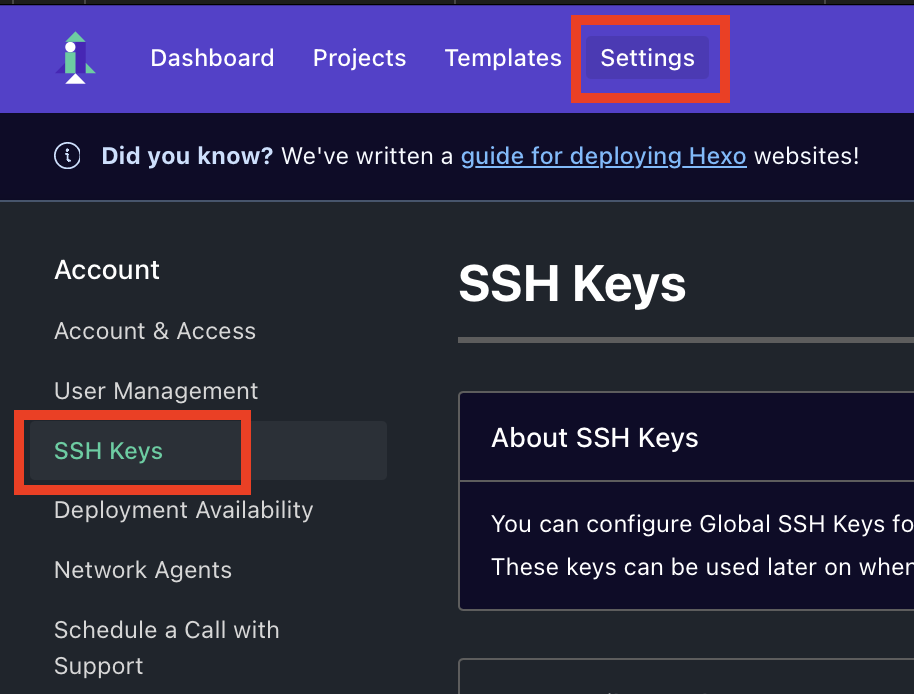
Click "New SSH Key" to create a new key. You can select the encryption type, and optionally provide a custom key by clicking "Use custom key?".
Once created, the key will be available for use across your account.
Using global keys with projects
You can assign a global SSH key to a project during project creation. On the first page of the project configuration, click "Advanced options", then select "Use a global SSH key" from the dropdown and choose the key you want to use.
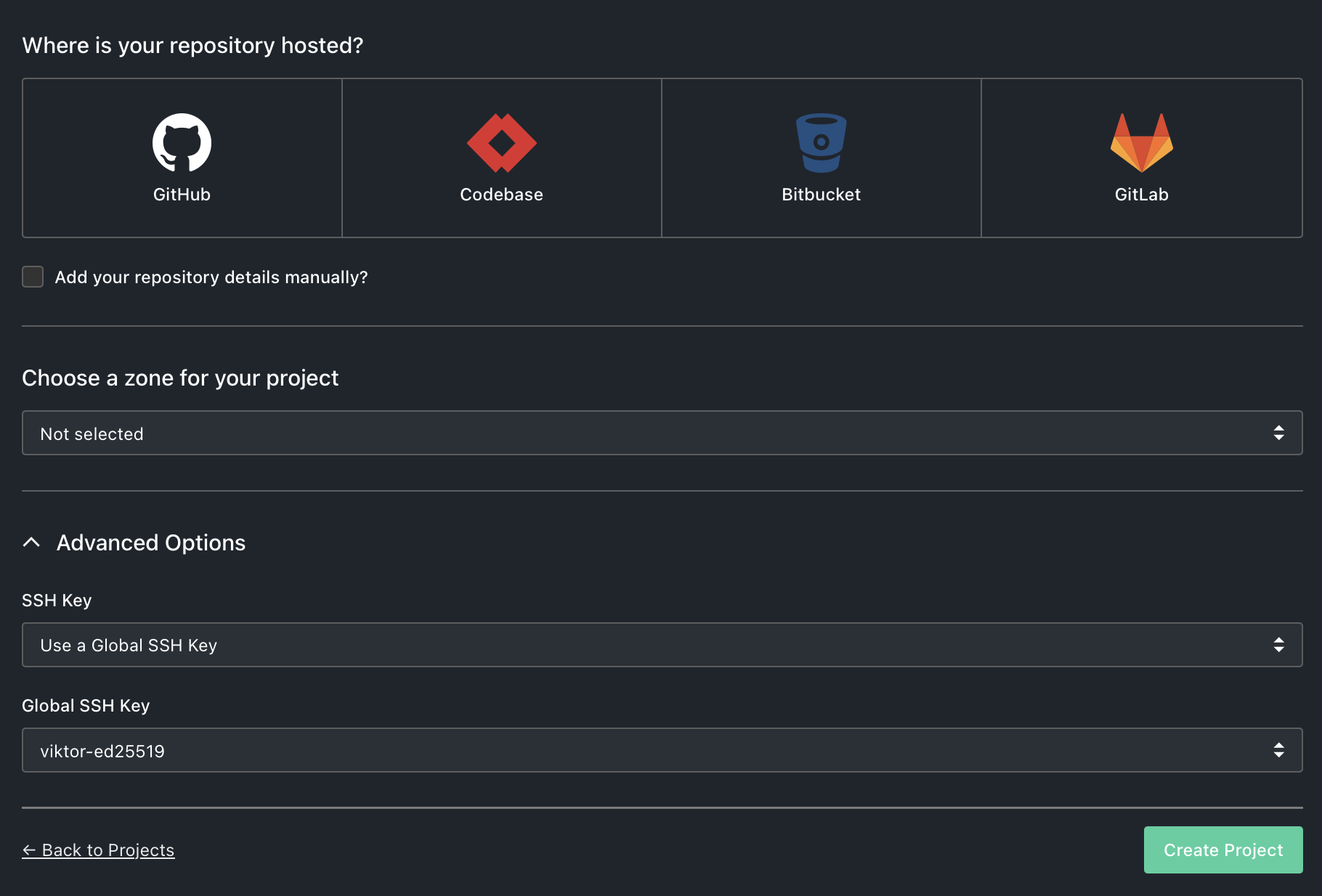
The project will use the selected global key as its default key for repository access and any servers that use the project key.
Using global keys with global servers
When creating or editing a global server that uses an SSH-based protocol (SSH/SFTP, Rsync, or Shell), you can select a global SSH key from the key selector dropdown. The selected key will be used for authentication when the global server is added to projects.
For more information about global servers, see Global Servers.
Using global keys with project servers
When creating or editing a server within a project, SSH-based servers (SSH/SFTP, Rsync, or Shell) display a key selector dropdown in the Authentication section. This dropdown lets you choose between:
- Use project key (default) -- The server uses the project's own SSH key for authentication.
- Any global SSH key -- The server uses the selected global key instead of the project key.
When you select a global key, the Authentication section updates to display that key's public key, which you can then install on your server.
Key resolution
When DeployHQ connects to a server during a deployment, it determines which SSH key to use based on the following logic:
- If a global SSH key is selected on the server, that key is used for authentication.
- Otherwise, the project's own SSH key is used.
This applies to all SSH-based protocols: SSH/SFTP, Rsync, and Shell servers.
Assigning a global SSH key via the API
SSH-based servers (SSH/SFTP, Rsync, and Shell) expose the selected key as global_key_pair_id. The value this field accepts is the identifier returned by GET /ssh_keys -- the same UUID shown in that listing alongside the key's title and fingerprint.
To assign a key to a server, list your keys, choose the one you need by title or fingerprint, and send its identifier:
PUT /projects/:project/servers/:id
{ "server": { "global_key_pair_id": "e39dc1a3-..." } }
The identifier is stored and returned unchanged, so a subsequent GET on the server shows the same value you sent. Older servers may show a numeric value instead; that legacy form is still accepted, but new assignments should use the identifier.
If the value does not match a key on your account, the request still succeeds and the server falls back to the project's own SSH key, following the resolution logic above. This is what prevents a key belonging to another account from being used, but it means an incorrect identifier will not return an error. Note that reading the server back does not confirm the assignment worked: the field returns the value you sent, whether or not it matches a key. When updating servers in bulk, check each identifier against the GET /ssh_keys listing before you send it.
This section covers assigning a key to an existing SSH-based server. Provisioning a Managed VPS uses a separate key_pair_identifier field, which is validated when the server is created.
Managing global SSH keys
You can manage all your global SSH keys from Settings > SSH Keys. Note that a global SSH key cannot be deleted if it is currently in use by any global server. You will need to change the key selection on those servers before you can remove the key.