

Team Management
Team management allows you to organize users into teams with specific permissions and project access controls. This feature is available on Business and Enterprise plans.
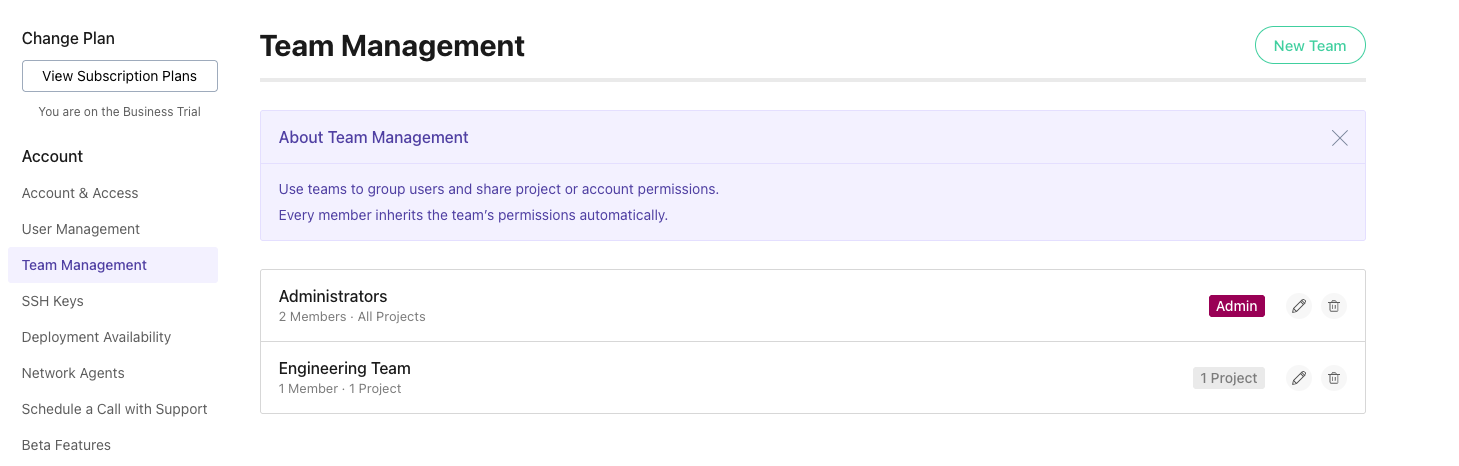
What are Teams?
Teams are groups of users that share common permissions and project access. Instead of setting permissions individually for each user, you can create teams with predefined permissions and assign users to those teams. This makes it easier to manage access for larger organizations.
Team members automatically inherit all permissions and project access granted to their team.
Team Permissions
When creating or editing a team, you can configure the following permissions:
Account-Level Permissions
- Is an account administrator?: Team members inherit full account access (including billing) when this is enabled. When enabled, all other permissions are automatically granted.
- Can manage users?: Allows members to create/delete users and assign them to projects.
- Can manage billing?: Grants access to payment methods, invoices, and package changes.
- Can manage agents?: Allows members to manage network agents used for deploying to servers behind a firewall.
- Can create projects?: Members can create new projects and manage those they create or are assigned to.
Project Access
You can control which projects team members can access:
- All Projects: When enabled, team members have access to all projects in your account. You can optionally exclude specific projects from this blanket access — see "All Projects with exclusions" below.
- Specific Projects: When not using "All Projects", you can select individual projects the team can access.
For each specific project, you can configure:
- Can deploy to specific servers: Select which servers or server groups team members can deploy to (or allow deployment to all).
- Can update project configuration: Whether team members can update non-sensitive project settings.
- Can manage config files: Whether team members can create, edit, and delete configuration files.
All Projects with exclusions
When a team is set to "All Projects", you can still mark individual projects as off-limits for that team. This is useful when most of your projects should be broadly accessible but a handful contain sensitive configuration, credentials, or infrastructure that only specific people should see.
To exclude projects from a team with "All Projects" enabled, use the exclusion picker in the team form to select the projects to hide. Excluded projects are removed from every member's view of that team's access, and the team listing shows "All Projects (N excluded)" to indicate how many are currently hidden.
Excluding a project only removes the access granted by that particular team. If a member also has access to the same project through another route — for example a direct user assignment, or membership in a second team that explicitly lists the project — that more specific grant still applies and the project remains visible to them. This matches DeployHQ's general rule that the most permissive access wins when multiple grants overlap.
Creating a Team
To create a new team:
- Go to Settings at the top of the screen
- Select Team Management under Account on the left side
- Click New Team
- Enter a team name
- Select team members from your existing users
- Configure the team permissions (account administrator, user management, billing, agent management, create projects)
- Set project access:
- Enable "All Projects" for access to all projects, or
- Select specific projects and configure permissions for each
- Click Create Team
Managing Team Members
You can add or remove users from a team at any time:
- Go to Settings > Team Management
- Click on the team you want to edit
- Use the team member chooser to add or remove users
- Click Update Team to save changes
A user can belong to multiple teams, and their effective permissions will be the combination of all team permissions.
Editing Team Permissions
To change a team's permissions or project access:
- Go to Settings > Team Management
- Click on the team you want to edit
- Modify the permissions or project assignments
- Click Update Team
All changes take effect immediately for all team members.
Deleting a Team
To delete a team:
- Go to Settings > Team Management
- Click on the team you want to delete
- Click Delete Team
- Confirm the deletion
Deleting a team does not delete the users. Users will lose the permissions granted by that team but retain any individual permissions or permissions from other teams.
Plan Requirements
Team management is available on the following plans:
- Business
- Enterprise
- Enterprise I
- Enterprise II
- Enterprise III
If you're on a lower-tier plan and need team management, you can upgrade your plan from Settings > Subscription Plans.
Teams vs Individual User Permissions
You can use both teams and individual user permissions together:
- Teams: Best for organizing groups of users with similar roles (e.g., developers, managers, finance team)
- Individual permissions: Best for one-off access requirements or user-specific needs
When a user has both team-based and individual permissions, the most permissive access wins. For example, if a team grants access to Project A, and the user's individual permissions grant access to Project B, the user will have access to both projects.
The same rule applies to project exclusions. If a team with "All Projects" excludes Project A, but the user is directly assigned to Project A or is a member of another team that lists Project A specifically, the user still has access to Project A. Exclusions only restrict access that would otherwise be granted by the same team.