

Pre-fill a Server with AI (Beta)
"Pre-fill with AI" is a beta feature that lets you generate a new server from a screenshot of your hosting provider's connection details or a short text description, instead of mapping every field manually. DeployHQ sends the input to its AI provider, parses the response, and pre-fills the New Server form so you can review the values before saving.
Where to Find It
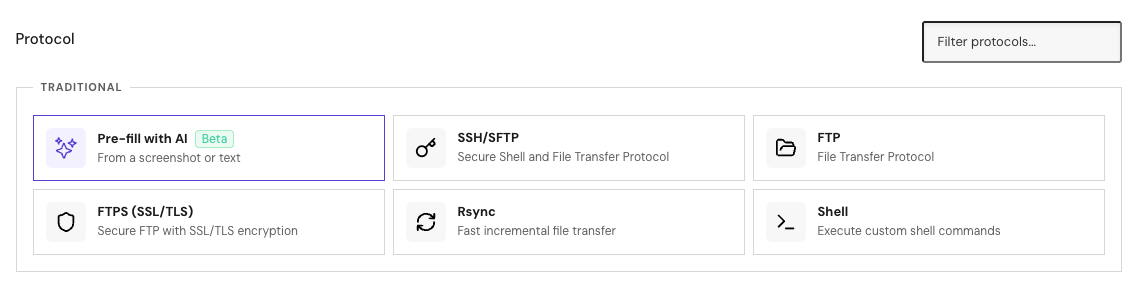
On the New Server page, the protocol picker now includes a Pre-fill with AI card in the Traditional group, marked with a Beta badge. Clicking it opens a dialog with two tabs:
- Upload screenshot: drag-and-drop or click to upload a PNG, JPEG, or WebP image up to 5 MB.
- Describe: paste a short text description, for example "SFTP to build.example.com on port 2222 as 'deploy', deploy to /var/www/app".
After you click "Pre-fill form", DeployHQ contacts its AI provider, parses the response, and pre-fills the standard server form behind the dialog. You can then review and edit every field before saving the server normally.
Enabling the Feature
This feature is in beta and is gated behind the beta features flag on your account. If you do not see the "Pre-fill with AI" card on the protocol picker, ask your account owner to enable beta features. It is currently available only through the DeployHQ web interface; there is no public API endpoint for it.
The card is shown only when you are creating a new server. Editing an existing server does not expose the option.
Supported Protocols
AI extraction recognises a focused set of protocols: SSH, SFTP, FTP, FTPS, Rsync, and Shell. If the AI cannot match the input to one of these, the dialog tells you it could not detect a server type and asks you to fill the form manually. If the AI suggests a protocol your account is not allowed to use (for example, a beta protocol that is not enabled), the request is rejected with a message naming the protocol; nothing is pre-filled.
If the description mentions more than one server, the dialog asks you to narrow it down to a single server or fill the form manually. AI extraction handles one server at a time.
Privacy and Data Handling
The feature is designed to keep sensitive connection data out of long-term storage:
- Screenshots are not retained after the request. Uploaded images are processed in the AI request and discarded once it completes; only the request's transient tempfile exists during processing, and nothing is written to long-term storage.
- Only a redacted copy of the AI response is stored. Values for known secret fields -
password,passphrase,secret,secret_access_key,private_key,auth_token,api_token,access_token,bearer_token,client_secret, andwebhook_secret- are replaced with[REDACTED]before being saved. Field names are kept so DeployHQ support can diagnose problems without seeing the secret itself. - Identifiers are kept as-is. Fields like
access_key_id,public_key, orkey_pair_nameare not redacted, because they are useful for diagnostics and are not secrets on their own. - Records are deleted after 7 days. A daily cleanup job purges every stored extraction once it is older than 7 days.
- Defensive password handling. If the AI returns a value that looks like a masked or placeholder password (for example,
••••,xxxxx, or[redacted]), DeployHQ drops it instead of pre-filling the form with a meaningless value.
Recommendations Before Submitting
- Crop or blur passwords before uploading a screenshot. Anything visible in the image is extracted as plain text by the AI provider. DeployHQ redacts known secret fields after the fact, but the cleanest path is to leave them out of the screenshot. You can fill in the password directly on the server form once the rest of the fields are pre-filled.
- Leave passwords out of text descriptions for the same reason.
- Crop screenshots to the connection details. Smaller, more focused images parse faster and reduce the chance of leaking unrelated context.
- Review every field the AI fills in. Treat the output as a draft, not as authoritative. The AI can misread hostnames, ports, and usernames, especially on noisy screenshots.
Troubleshooting
The "Pre-fill with AI" card does not appear on the protocol picker. Beta features are not enabled on your account, or you are editing an existing server. Ask the account owner to enable beta features, and use the option on the New Server page.
The request times out. The AI call has a 15-second timeout. Large screenshots or very long descriptions can exceed it. Crop the image, shorten the text, or fill in the form manually.
The dialog says it could not detect a server type. Pre-fill with AI supports SSH, SFTP, FTP, FTPS, Rsync, and Shell. Other protocols (S3, Heroku, Netlify, and similar cloud targets) are not detected by AI extraction; create those servers manually from the protocol picker.
The dialog says the description mentions more than one server. Narrow the input to a single server and try again, or fill the form manually.
The AI returns the wrong protocol or fields. Treat the pre-fill as a starting point. Correct the fields in the form before saving, or clear it and submit a sharper screenshot or more focused text.
Feedback
This feature is in beta and we are actively iterating on it. If the AI consistently misreads a particular protocol or screenshot format, let our support team know so we can improve the prompts and recognition.