

Deploying to BisectHosting via DeployHQ: Automated Game Server Deployment
Deploying your plugins, mods, and server configurations to a BisectHosting game server is simple with DeployHQ.
BisectHosting is a popular game server provider known for its extensive modpack support, hosting Minecraft, ARK, Rust, and 40+ other games. Their Starbase panel (built on Pterodactyl) provides SFTP access on port 2022, which DeployHQ can connect to directly.
Important: BisectHosting uses SFTP on port 2022 (not the standard port 22). Make sure to set this correctly in DeployHQ.
Coming soon: DeployHQ is adding native Game Panel integration with Pterodactyl protocol support (currently in beta). This will let you connect to BisectHosting's Starbase panel directly, without manual SFTP configuration.
Firstly, you'll need to set up your DeployHQ project, then connect to your BisectHosting server.
Setting up your project
Head to the Projects screen in DeployHQ, then click the New Project button to get started.
You'll be prompted to enter a name for your project, then select where your repository is hosted.
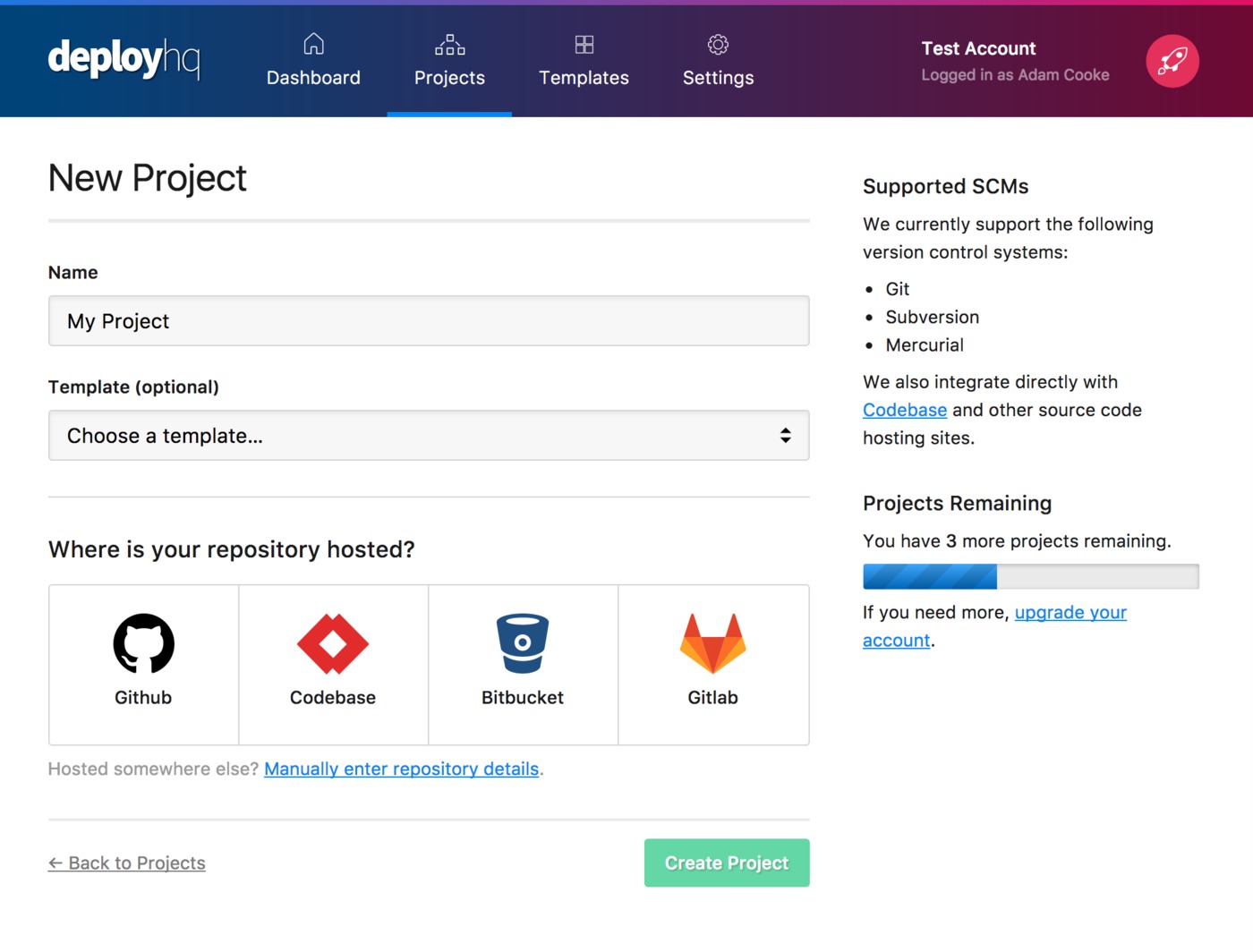
Next, click Create project and you'll be taken to a screen where you can log in with your repository hosting account to authorise access and then choose your repository.
- Adding a Bitbucket repository
- Adding a Codebase repository
- Adding a GitHub repository
- Adding a GitLab repository
- Adding a repository manually
Setting up BisectHosting
Once you've configured your repository, you'll need to connect to your BisectHosting game server.
First, find your SFTP credentials in the Starbase panel:
- Log in to your Starbase panel
- Select your server
- Click the Files tab
- Click the SFTP Credentials button
- Note the hostname, port, and username (format:
username.serverid) - Your SFTP password is the same as your Starbase panel login password
Head to Servers & Groups in DeployHQ, and click the New Server button. Choose SSH/SFTP as the protocol.
Enter the following details:
- Hostname: The SFTP hostname shown in the Starbase panel (make sure to separate the hostname from the port — they may be displayed together)
- Username: Your SFTP username (e.g.,
username.abc123) - Password: Your Starbase panel login password
- Port:
2022
Then set the Deployment path. Common paths for game servers:
- Minecraft plugins:
/plugins/ - Minecraft mods:
/mods/ - Server configuration:
/(root — whereserver.propertieslives) - Modpack configs:
/config/
If your Git repository contains only plugins, set the deployment path to /plugins/. If it contains your full server configuration, deploy to / (root).
Under Deployment options, you can enable automatic deployments and set a Deployment subdirectory if your repository has files in a subfolder.
Click Create Server to save, then proceed to your first deployment.
Run your first deployment
By default, DeployHQ will upload your entire repository on the first deployment, since there's no previously deployed commit to compare against.
If your files are already on the server and up to date with the latest commit, you can skip that initial upload:
Otherwise, follow this guide to start your first deployment — after the first run, only changed files will be uploaded:
That's it! You've now set up automated deployments to your BisectHosting game server.
Further reading
- Compile assets with the Build pipeline
- Prevent certain files from uploading using Excluded files
- Keep sensitive config out of your repository using Config files
- Notify your team and integrate with other services via Integrations
Need help with your deployment? Check out our documentation or contact our support team for assistance.
Automate your BisectHosting server deployments with DeployHQ
Keep your BisectHosting server's mods, plugins, and config files in Git and let DeployHQ ship them for you — run any packaging or compile steps through a build pipeline and deploy automatically on every push over SFTP. Create a free DeployHQ account and connect your repository in minutes.
Running servers on other platforms? See our guides for deploying to Nodecraft and deploying to Nitrado.