

Deploying to Rackspace via DeployHQ: Automated Server Deployment
Deploying to your site hosted with Rackspace is very simple with DeployHQ. Rackspace offers Cloud Servers, dedicated servers, and managed hosting — all with full SSH access.
Firstly, you'll need to set up your DeployHQ project, then connect to your Rackspace server.
Setting up your project
Head to the Projects screen in DeployHQ, then click the New Project button to get started.
You'll be prompted to enter a name for your project, then select where your repository is hosted.
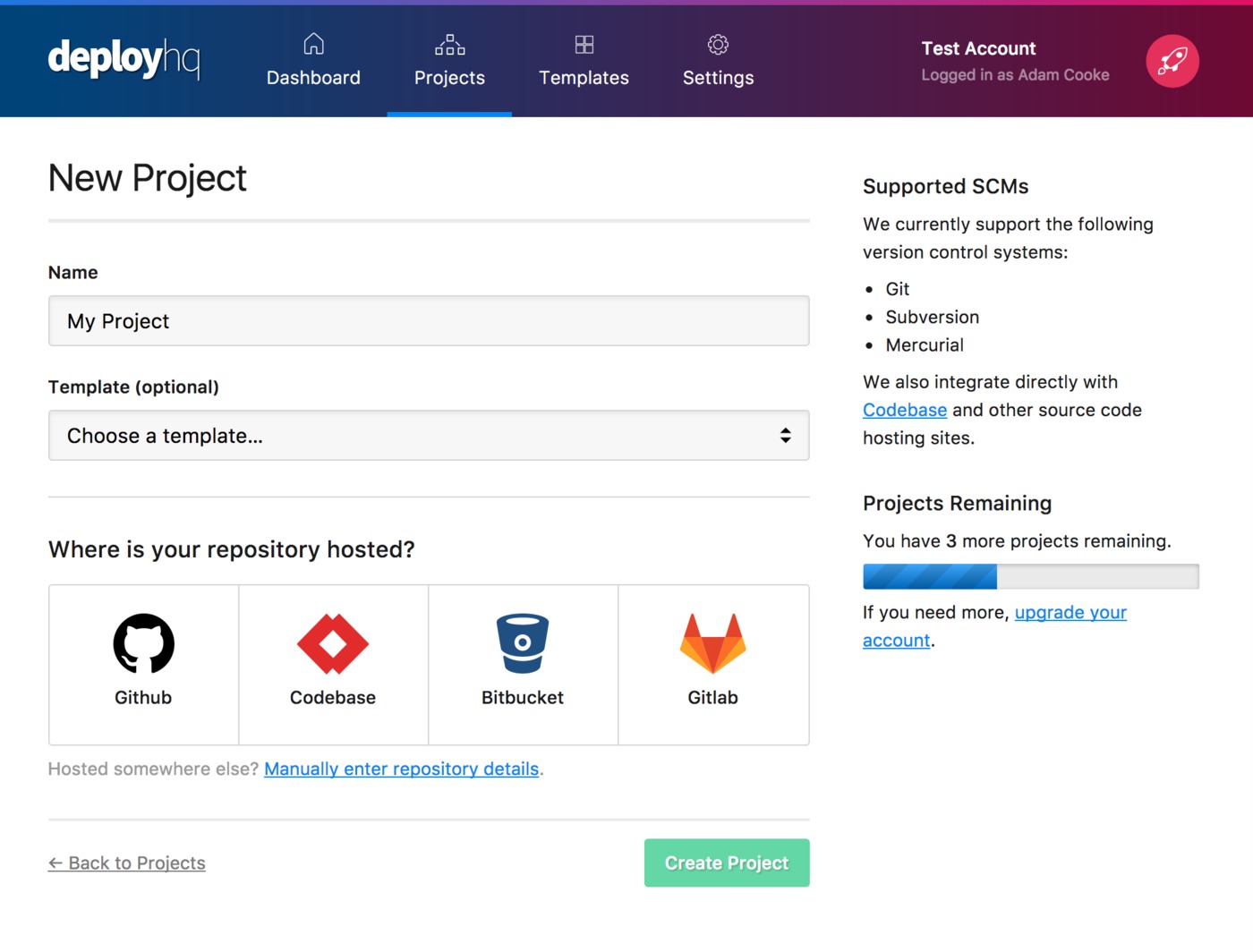
Next, click Create project and you'll be taken to a screen where you can log in with your repository hosting account to authorise access and then choose your repository.
- Adding a Bitbucket repository
- Adding a Codebase repository
- Adding a GitHub repository
- Adding a GitLab repository
- Adding a repository manually
Setting up Rackspace
Once you've configured your repository, you'll need to connect to your Rackspace server.
Finding your credentials
Cloud Servers (via the Cloud Control Panel):
- Log in at the Cloud Control Panel
- Navigate to Rackspace Cloud > Servers > Cloud Servers
- Click your server name — the public IP address is shown under Networks and Security Groups
- The default SSH user is
root - The root password is shown only once when the server is first created — make sure to copy it. If lost, use the Change Password option on the Server Details page
Dedicated Servers (via the MyRackspace Portal):
- Log in at the MyRackspace Portal
- Navigate to Dedicated Hosting > Products > Devices
- Select your server to see its IP address
- Credentials are provided by Rackspace during provisioning
Adding the server in DeployHQ
Head to Servers & Groups, and click the New Server button at the top of the screen. If you've just added your repository, you will have been taken to this page automatically.
Start by entering a name, and choosing SSH/SFTP as the protocol. Enter your server's public IP as the hostname, root as the username (or a deploy user if you've created one), your password, and leave the port blank to use the default (22).
You can also use SSH key authentication — Rackspace lets you assign SSH keys at server build time via the Cloud Control Panel or API. Note that SSH keys on Rackspace are region-specific.
For the deployment path, enter the directory where your files should be uploaded:
- Apache:
/var/www/html/ - Nginx:
/usr/share/nginx/html/ - Virtual hosts:
/var/www/vhosts/your-domain/httpdocs/
Within Deployment options, you can choose to automatically deploy your server and, if you're only deploying files from a certain directory in your repository, enter a Deployment subdirectory.
Note: Rackspace Cloud Servers have no firewall configured by default — all ports are open. We recommend setting up iptables or firewalld on your server, ensuring port 22 remains accessible from DeployHQ's IP addresses. If you're using Managed Operations, coordinate firewall changes with Rackspace support.
Click Create Server to finish, then you can proceed to start your first deployment.
Run your first deployment
By default, DeployHQ will upload the whole repository to your server on the first deployment, because there is no previously deployed commit to compare to.
If your files are already on Rackspace and up to date with the latest commit, you can follow this guide to skip that first deployment:
Otherwise, just follow this guide to start your first deployment, then after the first deployment, only files that have changed will be uploaded in future.
That's it! You've now set up and run your first deployment to your Rackspace server and your future changes will be uploaded for you automatically, or at the simple click of a button.
Further reading
DeployHQ has a number of very useful features to help with your deployments in general that you might wish to find out more about:
- Compiling assets and javascript with the Build pipeline
- Running commands on your server with SSH commands
- Stop certain files from being uploaded in deployments using Excluded files
- Keep important files safely away from your repository using Config files
- Keep your team in the loop and run other useful tasks during a deployment with our Integrations
Automate your deployments to Rackspace
Ready to streamline how you ship to Rackspace? DeployHQ runs your server-side build pipeline, transfers changes with zero-downtime deployments, and can deploy automatically on every push. Create a free DeployHQ account and connect your repository in minutes.
You can also follow our step-by-step guides to deploy a Laravel app or deploy a WordPress site to your Rackspace server.