

Deploying to HostArmada via DeployHQ: Automated Cloud Hosting Deployment
Deploying your code or website to HostArmada is straightforward with DeployHQ.
Important: HostArmada uses a non-standard SSH port (19199 instead of the usual 22) and requires SSH key authentication — password-based SSH is disabled.
Firstly, you'll need to set up your DeployHQ project, then connect to your HostArmada server.
Setting up your project
Head to the Projects screen in DeployHQ, then click the New Project button to get started.
You'll be prompted to enter a name for your project, then select where your repository is hosted.
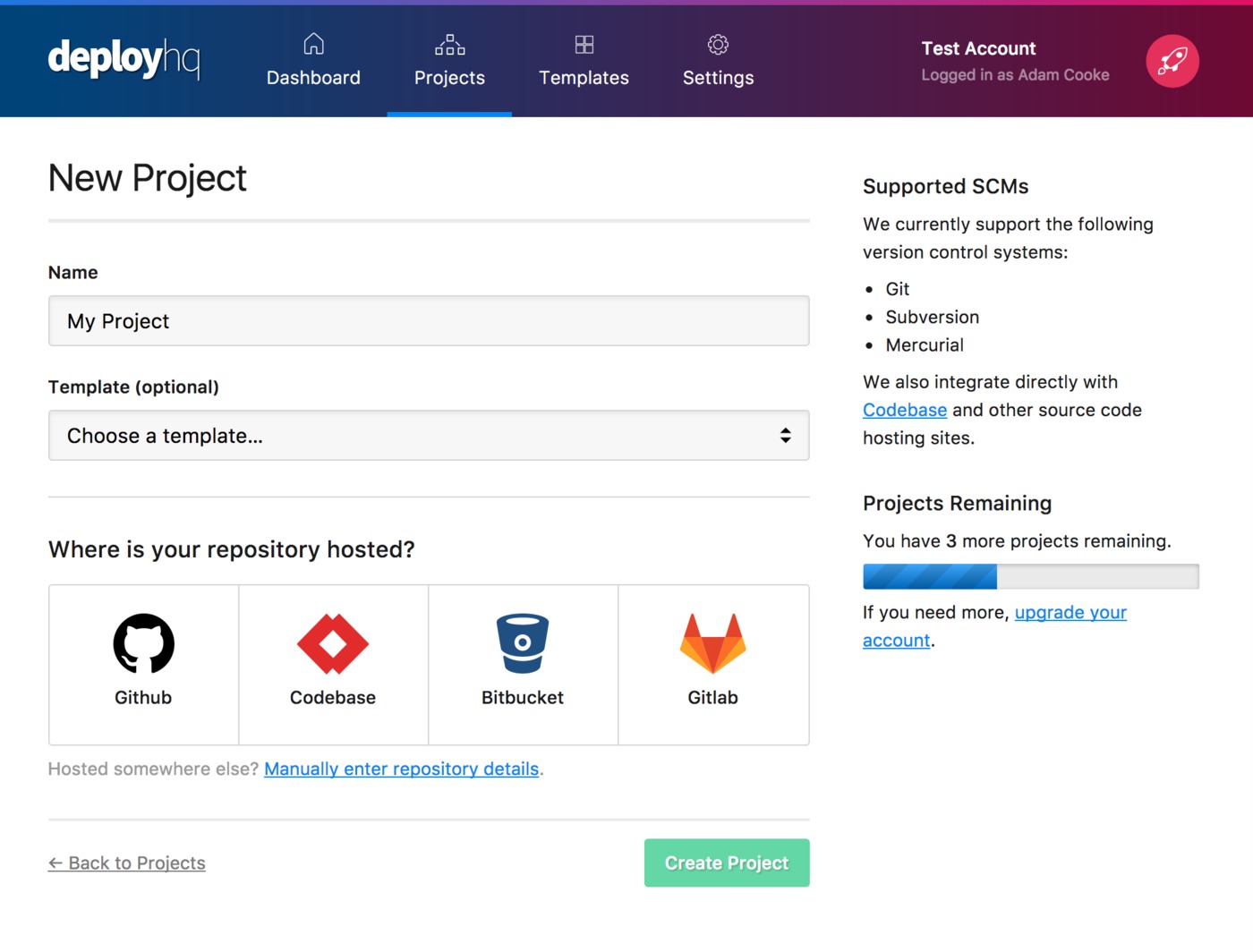
Next, click Create project and you'll be taken to a screen where you can log in with your repository hosting account to authorise access and then choose your repository.
- Adding a Bitbucket repository
- Adding a Codebase repository
- Adding a GitHub repository
- Adding a GitLab repository
- Adding a repository manually
Setting up HostArmada
Once you've configured your repository, you'll need to connect to your HostArmada server.
First, generate and authorise an SSH key in cPanel:
- Log in to your HostArmada Client Area at
hostarmada.com/clients/ - Open cPanel for your hosting account
- Go to Security > SSH Access
- Click Manage SSH Keys, then Generate a New Key
- Download the private key and note your cPanel username
- Click Manage next to the public key and Authorize it
Alternatively, you can import DeployHQ's public key: in cPanel's SSH Access, click Import Key, paste the public key shown in DeployHQ's server configuration page, and authorise it.
Head to Servers & Groups in DeployHQ, and click the New Server button. Choose SSH/SFTP as the protocol.
Enter the following details:
- Hostname: Your server's hostname (found in your welcome email or cPanel URL — everything before
:2083) - Username: Your cPanel username
- Port:
19199(HostArmada's non-standard SSH port — do not use 22)
Then set the Deployment path:
- Primary domain:
/home/yourusername/public_html/ - Addon domain:
/home/yourusername/addondomain.com/(check your cPanel for the exact path)
For WordPress theme deployments, append the path to the theme directory.
Under Deployment options, you can enable automatic deployments and set a Deployment subdirectory if needed.
Click Create Server to save, then proceed to your first deployment.
Run your first deployment
By default, DeployHQ will upload your entire repository on the first deployment, since there's no previously deployed commit to compare against.
If your files are already on the server and up to date with the latest commit, you can skip that initial upload:
Otherwise, follow this guide to start your first deployment — after the first run, only changed files will be uploaded:
That's it! You've now set up automated deployments to your HostArmada server.
Further reading
- Compile assets with the Build pipeline
- Run commands on your server with SSH commands
- Prevent certain files from uploading using Excluded files
- Keep sensitive config out of your repository using Config files
- Notify your team and integrate with other services via Integrations
Need help with your deployment? Check out our documentation or contact our support team for assistance.
Deploy to HostArmada automatically with DeployHQ
Once your HostArmada server is connected, DeployHQ handles the rest: it runs your build pipeline on its own infrastructure, ships each release with zero-downtime deployments, and triggers a deployment automatically whenever you push. Start a free DeployHQ account to wire up your repository in a few minutes.
Deploying a specific stack? See our guides on how to deploy a Laravel app or deploy a WordPress site on HostArmada.